TABLE OF CONTENTS
- Before You Begin
- Check System Status
Before You Begin
1. Laptop Requirements (Windows Only):
Please ensure the Windows laptop you plan to use meets the following minimum requirements:
Operating System: Windows 7 or Newer
⚠️ macOS and Linux are not supported. The programs and drivers are only compatible with Windows OS.
Storage: At least 5GB of free disk space for software and data logs.
Ports: At least one functional USB Type-A port is required to connect the diagnostic cables.
Internet Connection: A stable internet connection is needed to download the required software and drivers.
User Permissions: You will need administrator rights on the laptop to install software and drivers.
Power Source: Please ensure the laptop is plugged in to avoid the battery running low during this process.
Sleep Mode: Ensure the laptop will not go to sleep during this, so as not to interrupt any active processes.
2. Required Software + Driver Installation
Before beginning the update process , ensure all necessary programs and drivers are installed on your Windows machine. Follow the link below for the full installation guide:
➡ Driver & Firmware Tool Installation Guide
If you already have the tools installed, verify that the drivers are functional and up-to-date before proceeding.
➡ HomeGrid TeamViewer Link (recommended if live technical support is needed)
3. Remove Side Panels
- Remove the right side panel(s) on the BMS units to access ports and dip switches.
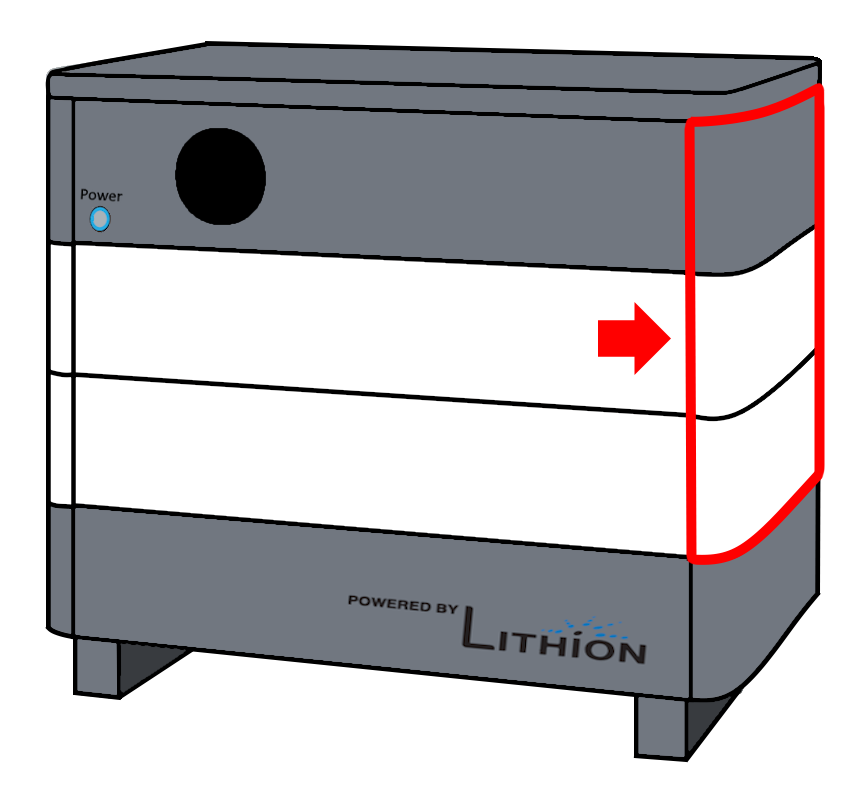
4. Prepare the RS232 Cable
The tool requirements are below:
- A USB to RS232 Cable
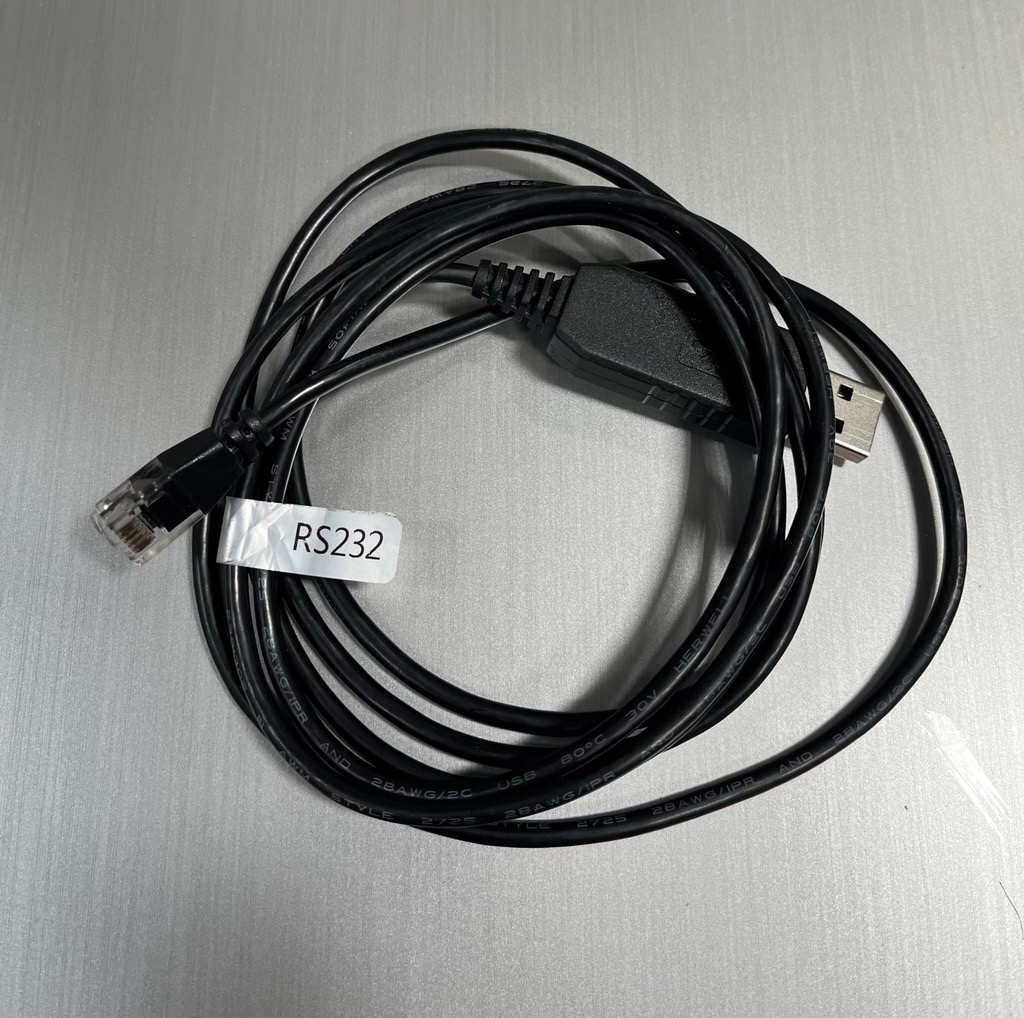
⚠️ If you do not have this cable, see the following pinout guide (How to Create an RS232 and RS485 - Pin Outs) or contact HomeGrid Support.
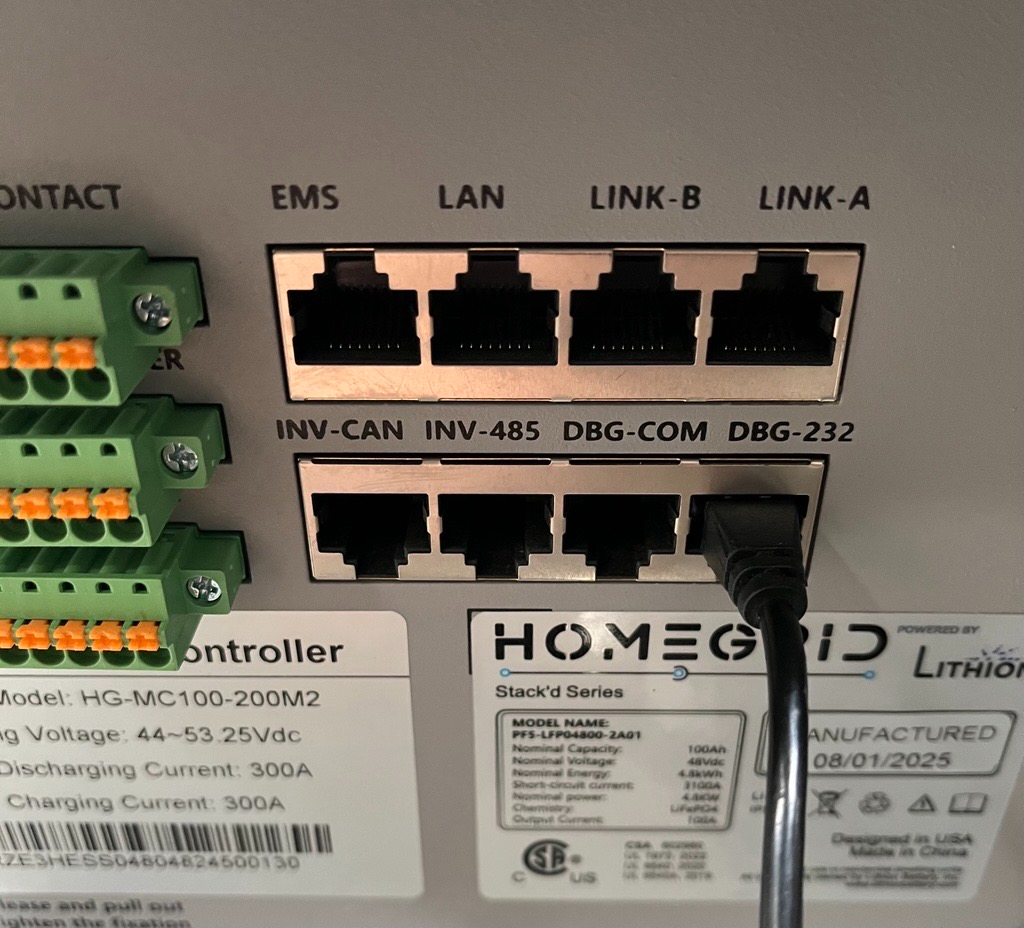
Connect the cable to the port labeled 'DBG-232' or 'RS232'
Note: Other cables (like the Parallel Cables or Inverter communication cables) can remain connected
Check System Status
Open the Program 'EMS Tools'
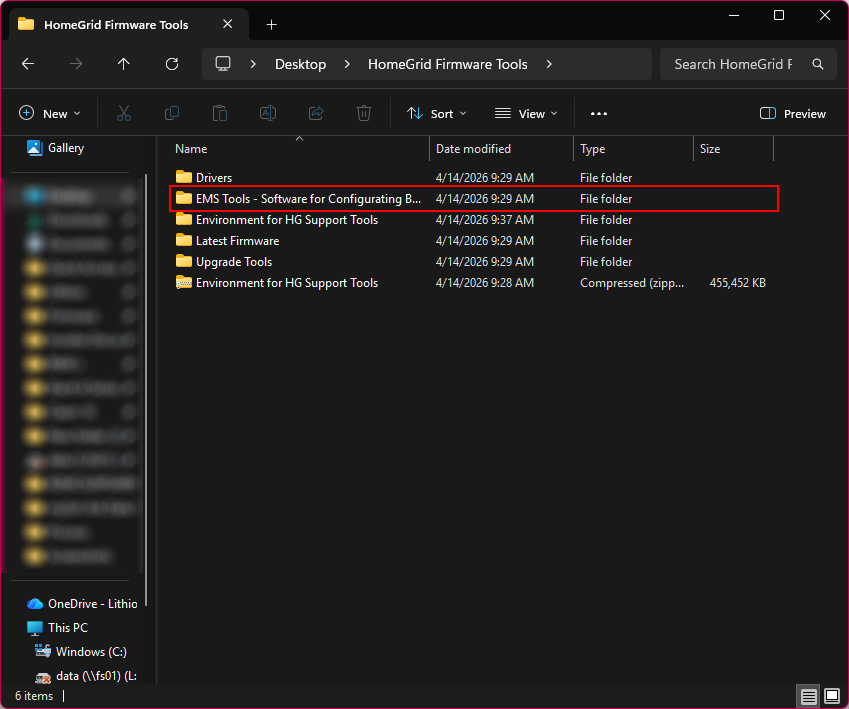
The following details assume that the file path remains the same from the Driver & Firmware Tool Installation Guide
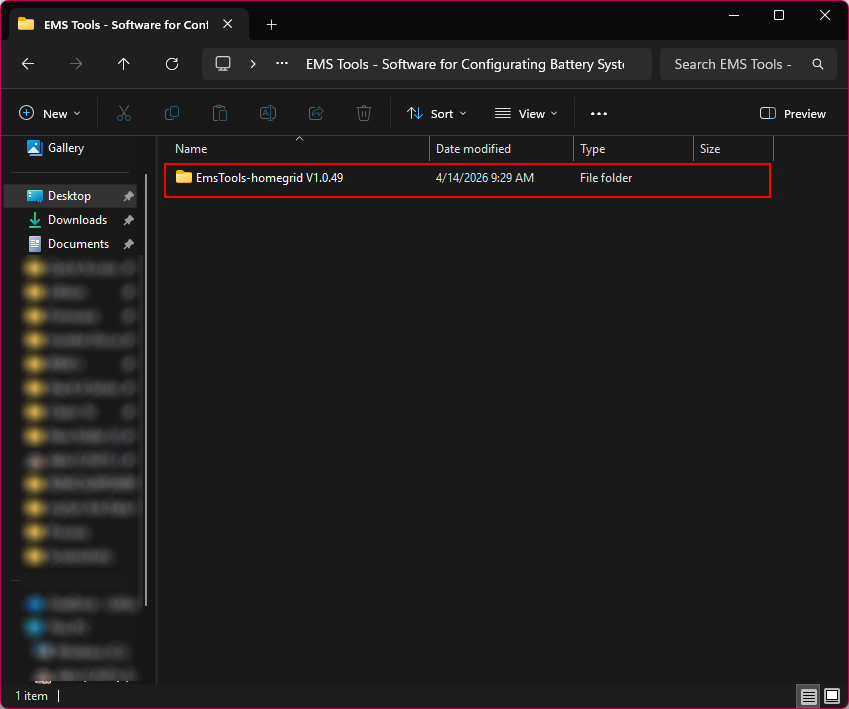
1. Open the folder 'EMS Tools - Software for Configurating Battery System'
2. Open the folder 'EMSTools-homegrid V1.0.49'
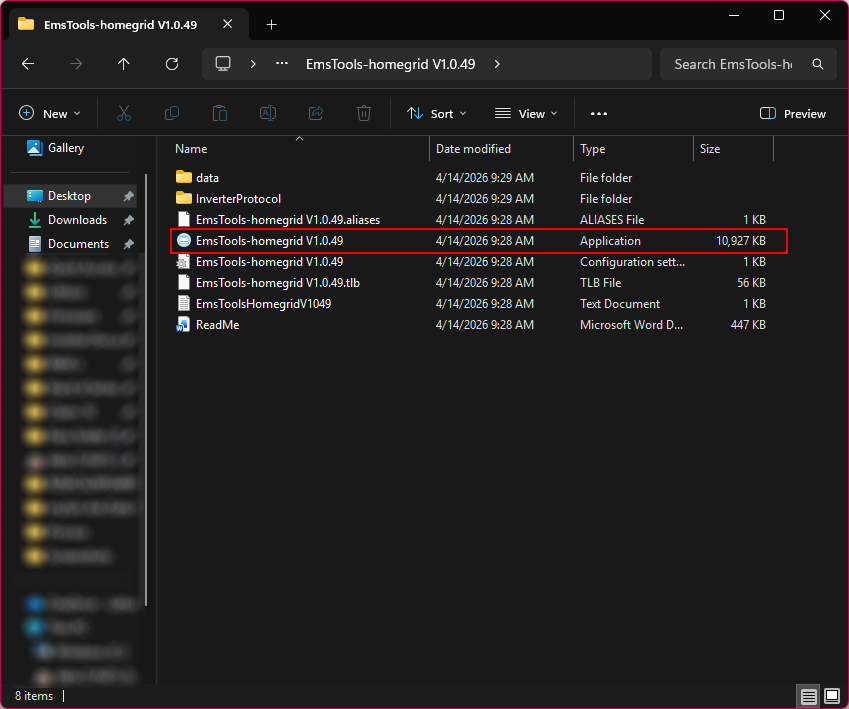
3. Open the Application 'EmsTools-homegrid V1.0.49'
Note: During this process, you may be prompted with the following message. Follow the steps below to clear and continue the installation process.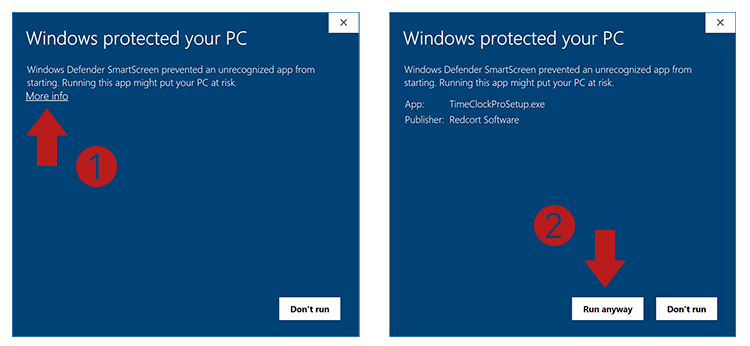
Configure the Program and Begin Reading Data
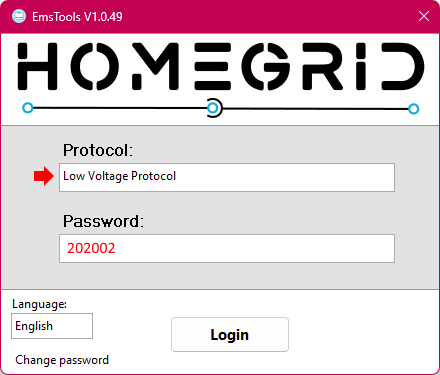
1. Once the program opens, it will prompt you to select a Protocol and enter a Password.
- From the 'Protocol:' drop-down, select 'Low Voltage Protocol'
- Enter the password: 202002
- Select 'Login'
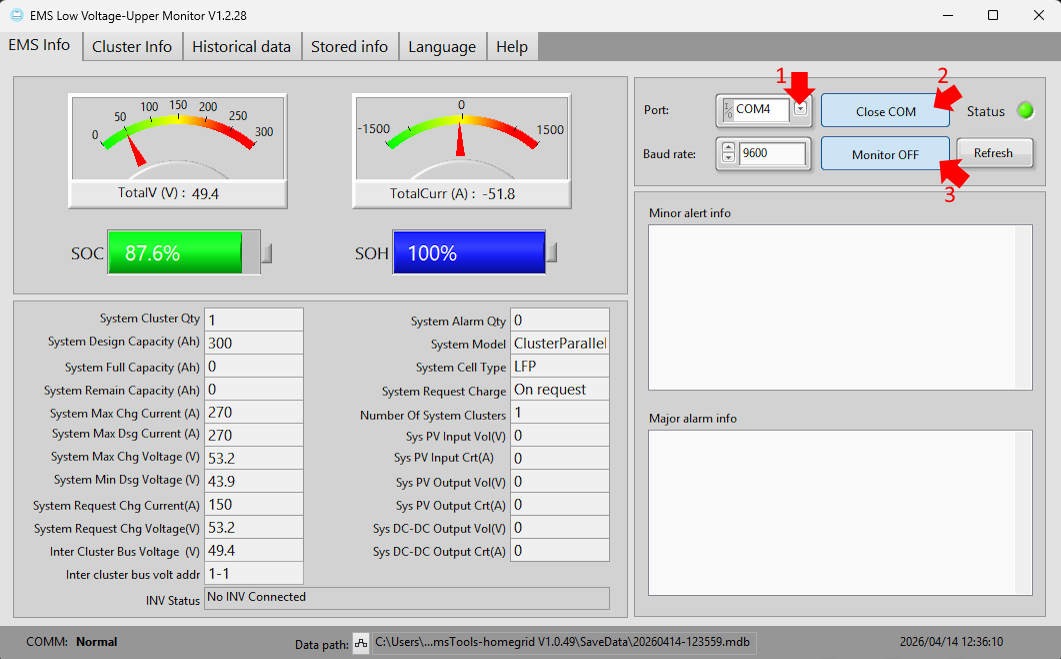
2. This will bring you into 'EMS Low Voltage Upper Monitor v1.2.28'. To start reading the data from the unit, you will need to do the following:
- Select the dropdown and select the COM port for the RS232 cable.
- Select Open COM
- Once selected, the box should go blue, and the text should change to Close COM
- Select Monitor ON
- Once selected, the box should go blue, and the text should change to Monitor OFF
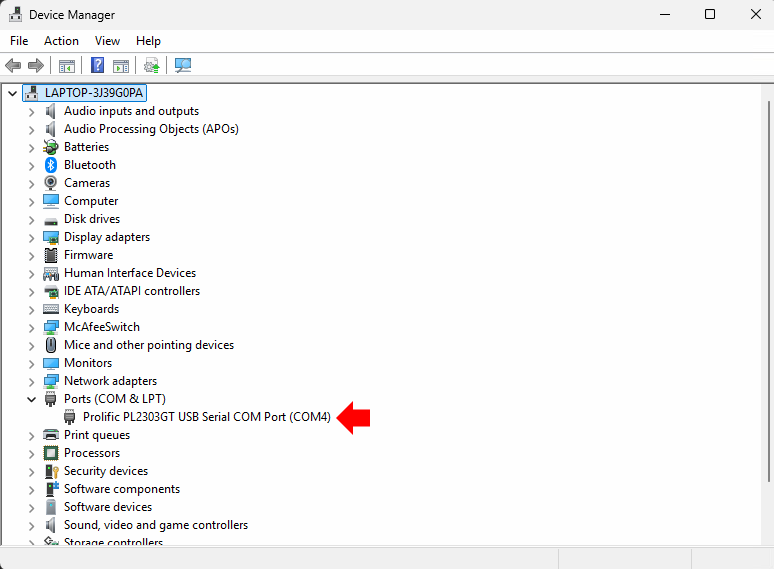
Note: If there are multiple COM port options, navigate to device manager and check under ports for Prolific PL2303GT USB Serial COM Port. If you do not see this, the laptop either hasn't recognized the cable or the drivers have not been properly installed.
How to Read the Data
1. EMS Info Page
This section will show some items as cumulative values if you have multiple stacks in parallel. To see ONLY the data for the stack you are connected to, move to the next section.
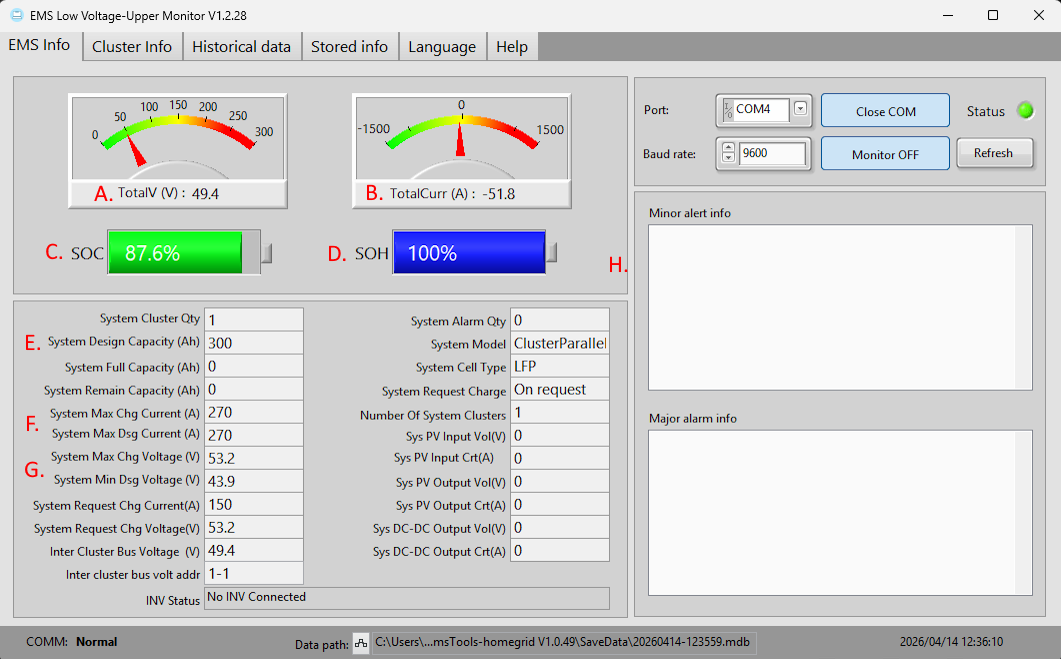
| A. | Total Voltage | This is the total voltage of the HomeGrid Stack. |
| B. | Total Current | This is the active amount of current that is flowing in/out of the BMS. Negative amperage means that the system is discharging while positive means that it is charging. |
| C. | State of Charge | This is the average calculated state of charge of all of the battery modules within the HomeGrid stack. |
| D. | State of Health | This is the average calculated state of health of all of the battery modules within the HomeGrid stack. |
| E. | System Capacity | This number should be 100Ah * the number of battery modules within the HomeGrid stack. |
| F. | Max Charge and Discharge Current | This number shows the total amount that the BMS is ready to input or output at any given time in Amps. |
| G. | Max Charge and Discharge Voltage | This number represents the voltage at the top and bottom ends of the charge cycle (0-100% SOC) |
| H. | Minor and Major Alarm/Alert Info | Any present error or alarm messages will apear here. |
2. Cluster Info > Operating Param
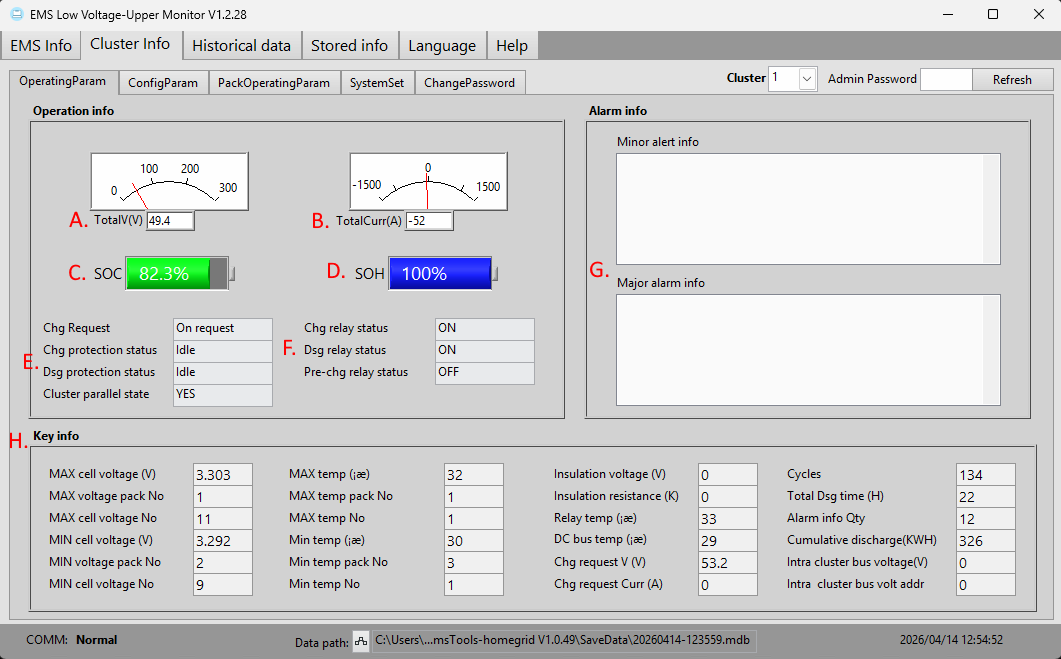
| A. | Total Voltage | This is the total voltage of the HomeGrid Stack. |
| B. | Total Current | This is the active amount of current that is flowing in/out of the BMS. Negative amperage means that the system is discharging while positive means that it is charging. |
| C. | State of Charge | This is the average calculated state of charge of all of the battery modules within the HomeGrid stack. |
| D. | State of Health | This is the average calculated state of health of all of the battery modules within the HomeGrid stack. |
| E. | Charge and Discharge Protection Status | This section will inform you if there are any active charge / discharge protections engaged. |
| F. | BMS Relay Status | This section displays the active status of the charge / discharge relay, aswell as the precharge relay inside the BMS. |
| G. | Minor and Major Alarm/Alert Info | Any present error or alarm messages will appear here. |
| H. | Other Info. | Gives information on info across the entire stack. |
3. Cluster Info > ConfigParam
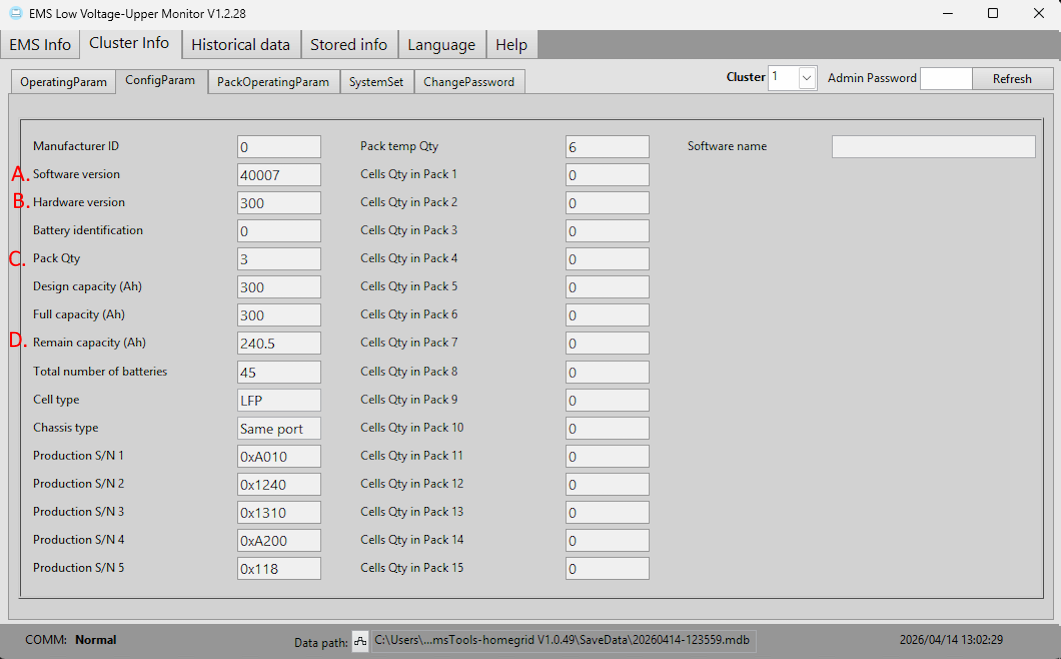
| A. | BMS Software Version | This will display the current software version of the main control board within the BMS. |
| B. | BMS Hardware Version | This will display the hardware version of the BMS. |
| C. | Pack Quantity | This will display the number of battery modules the system is currently detecting. |
| D. | Remaining Capacity (Ah) | This will display the amount of capacity remaining in total accross all of the battery modules within the stack. |
4. Cluster Info > PackOperatingParam
In this view, you will look at individual battery modules, so you need to use the navigation bar to select which battery module you would like to look at.
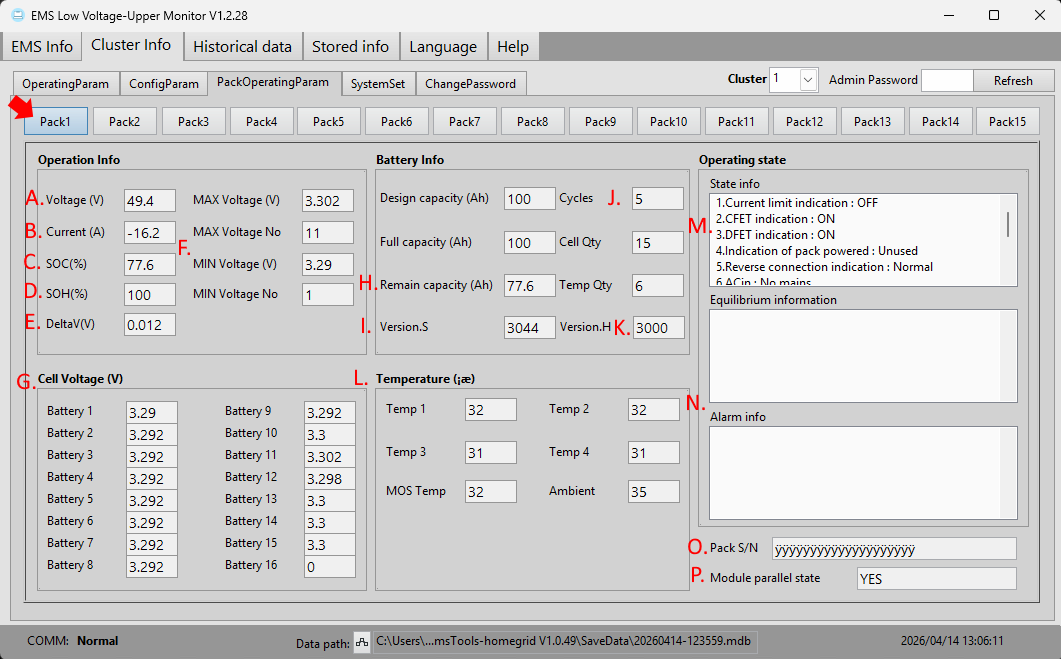
| A. | Voltage (V) | This is the total voltage of the battery module. |
| B. | Current (A) | This is the active amount of current that is flowing in/out of the battery module. Negative amperage means that the system is discharging while positive means that it is charging. |
| C. | State of Charge (%) | This is the calculated state of charge of the battery module. |
| D. | State of Health (%) | This is the calculated state of health of the battery module. |
| E. | DeltaV (V) | This is the voltage difference between the highest and the lowest cell in the battery module. |
| F. | Max and Min Voltages | This gives more detail on the DeltaV, detailing where the highest and lowest cells are and what their individual voltages are. |
| G. | Cell Voltage (V) | This will display each cell and its voltage (1-15). |
| H. | Remaining Capacity (Ah) | This will display the amount of capacity remaining in the battery stack. |
| I. | Fimrware Version | This is the firmware that the battery module is loaded with. |
| J. | Cycles | The number of measured cycles on the battery module. |
| K. | Hardware Version | This is the hardware version of the battery module. 3000 is a generation 3, 2000 in a generation 2, and 1000 is a generation 1. |
| L. | Temperature Sensors | This will display each temperature sensor and its active readings. |
| M. | CFET + DFET | This is the active status of the charge and discharge FETs within the battery module. |
| N. | Equilibrium and Alarm Info | Any present error or alarm messages will appear here. |
| O. | Pack S/N | This serial number should match the serial number under the barcode on the battery module's silver sticker. |
| P. | Parallel State | The status of the battery module's parallel state in relation to the rest of the system. |
Was this article helpful?
That’s Great!
Thank you for your feedback
Sorry! We couldn't be helpful
Thank you for your feedback
Feedback sent
We appreciate your effort and will try to fix the article