Note: This guide is designed for updating a Generation 3 BMS (HG-MC100-200M2) using a USB CAN Tool. The information and procedures contained in this guide may not apply to previous or future firmware releases.
TABLE OF CONTENTS
- Before You Begin
- Updating the BMS
Before You Begin
1. Laptop Requirements (Windows Only):
Please ensure the Windows laptop you plan to use meets the following minimum requirements:
Operating System: Windows 7 or Newer
⚠️ macOS and Linux are not supported. The programs and drivers are only compatible with Windows OS.
Storage: At least 5GB of free disk space for software and data logs.
Ports: At least one functional USB Type-A port is required to connect the diagnostic cables.
Internet Connection: A stable internet connection is needed to download the required software and drivers.
User Permissions: You will need administrator rights on the laptop to install software and drivers.
Power Source: Please ensure the laptop is plugged in to avoid the battery running low during this process.
Sleep Mode: Ensure the laptop will not go to sleep during this, so as not to interrupt any active processes.
2. Required Software + Driver Installation
Before beginning the update process , ensure all necessary programs and drivers are installed on your Windows machine. Follow the link below for the full installation guide:
➡ Driver & Firmware Tool Installation Guide
If you already have the tools installed, verify that the drivers are functional and up-to-date before proceeding.
➡ HomeGrid TeamViewer Link (recommended if live technical support is needed)
3. Isolate the BMS from the Inverters
- Isolate the battery from the inverter by turning off the battery breakers on the inverter(s).
⚠️ This prevents power from flowing in or out of the BMS, ensuring the update can start without issues.
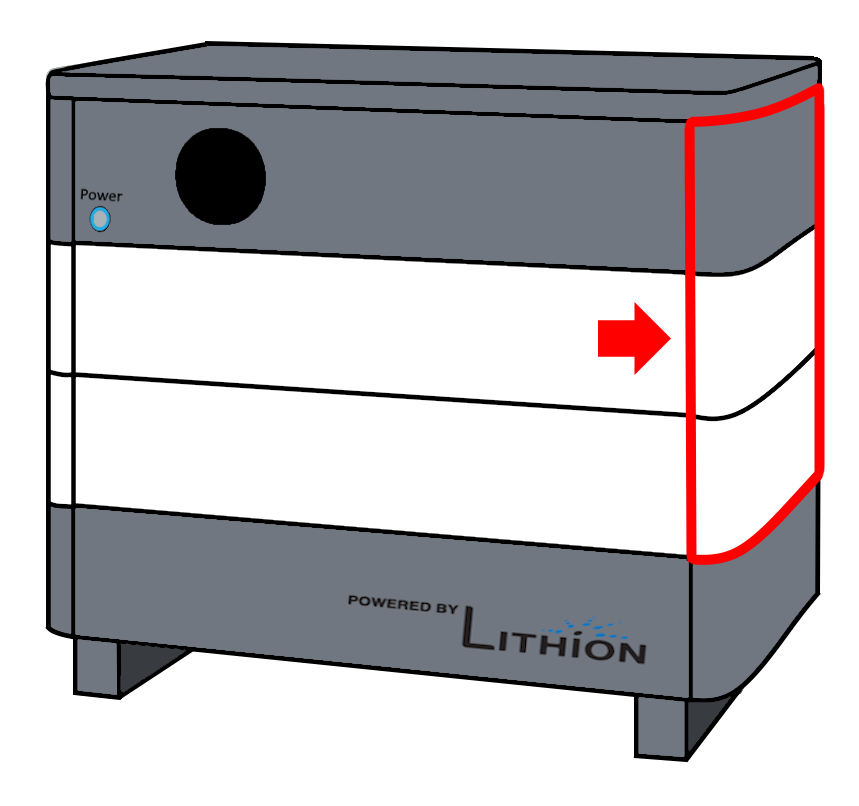
4. Remove Side Panels
- Remove the right side panel(s) on the BMS units to access ports and dip switches.
5. Prepare the USB CAN Analyzer Tool
The tool requirements are below:
- A USB-A to USB-B cable
- CAN Analyzer to RJ45
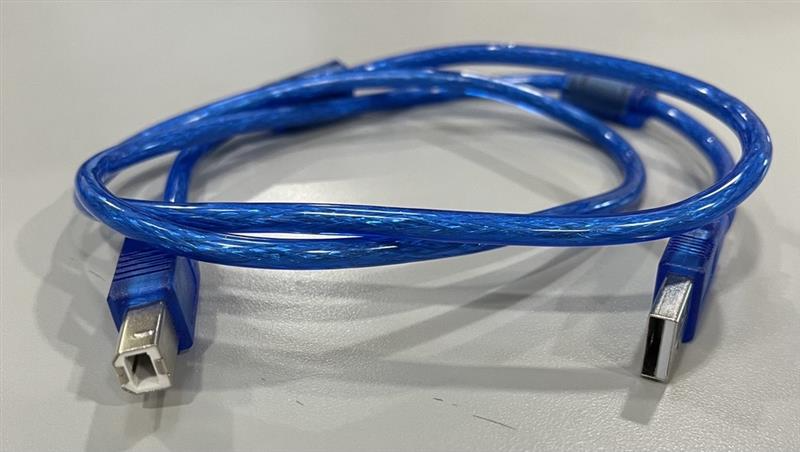
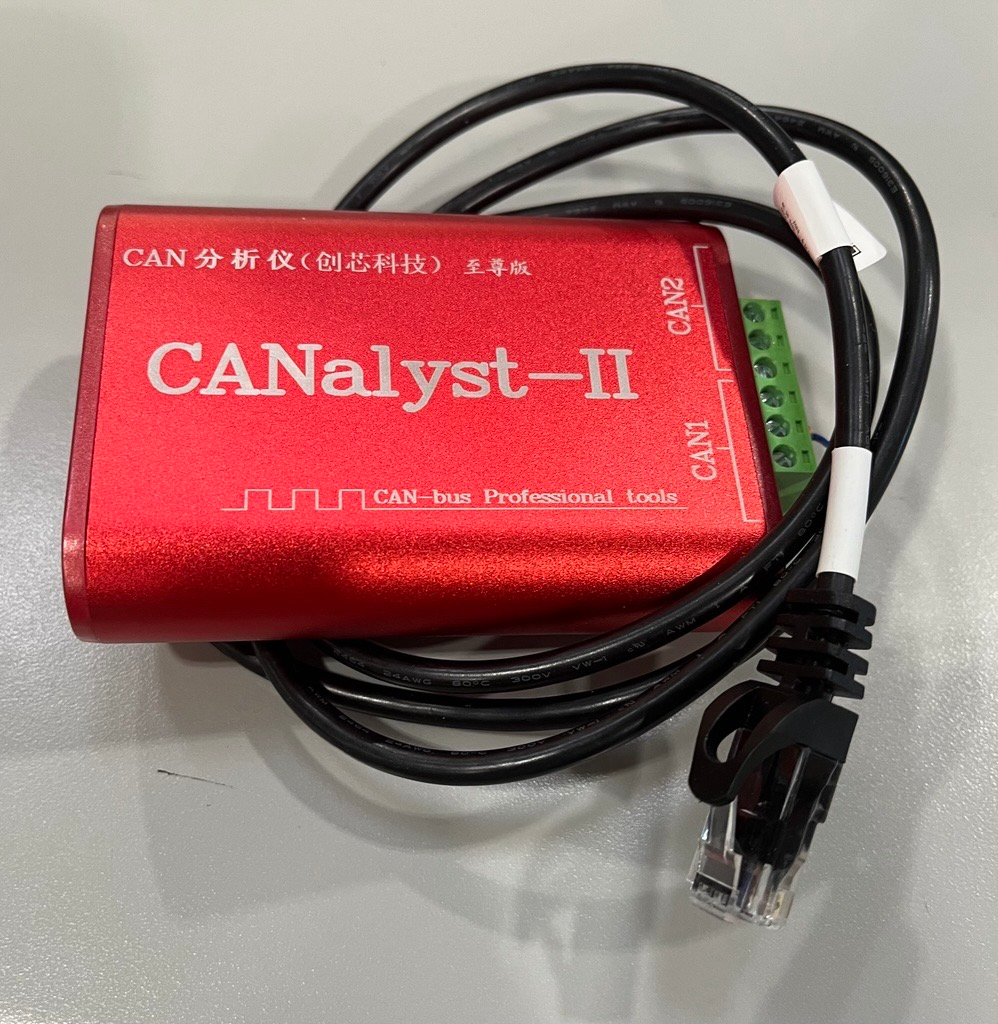
⚠️ If you do not have this cable, contact HomeGrid Support.
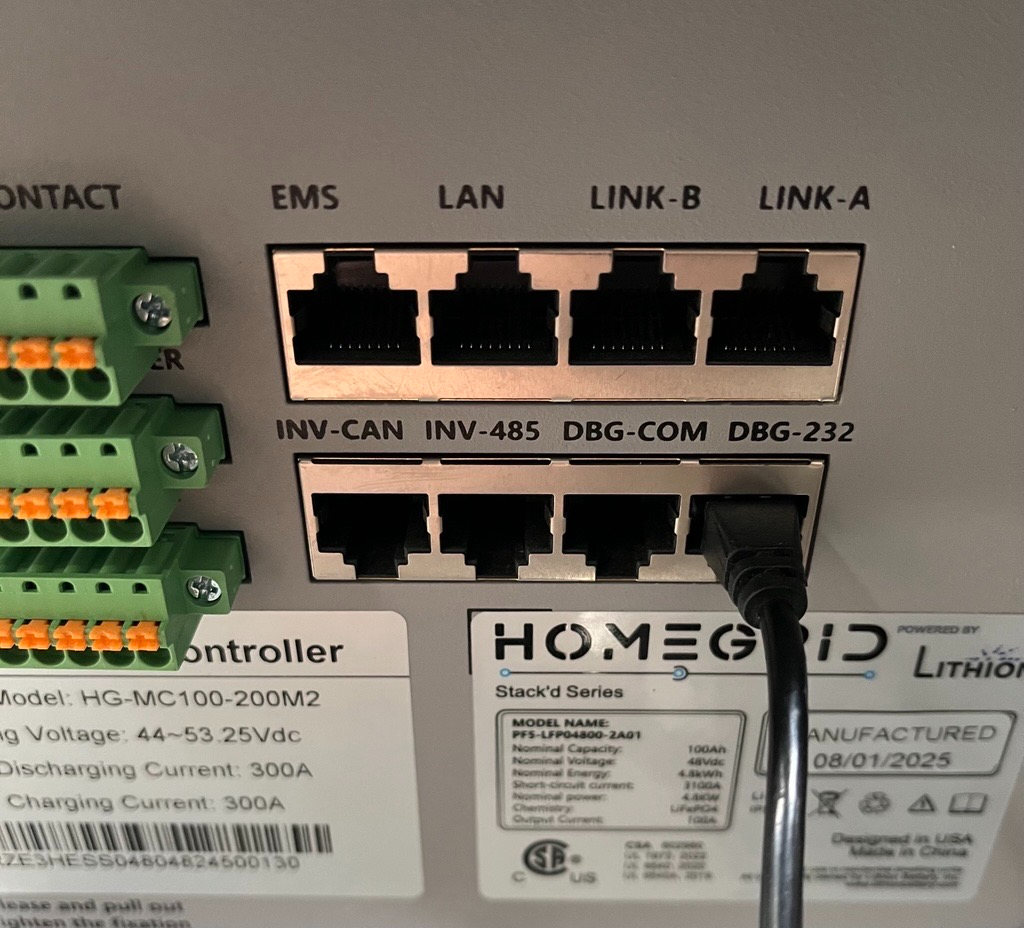
Connect the cable to the port labeled 'DBG-COM' or 'COM'
Note: Other cables (like the Parallel Cables or Inverter communication cables) can remain connected
Upgrade Process
Section 1 — Open the Program 'UpgradeTools-en V1.6'
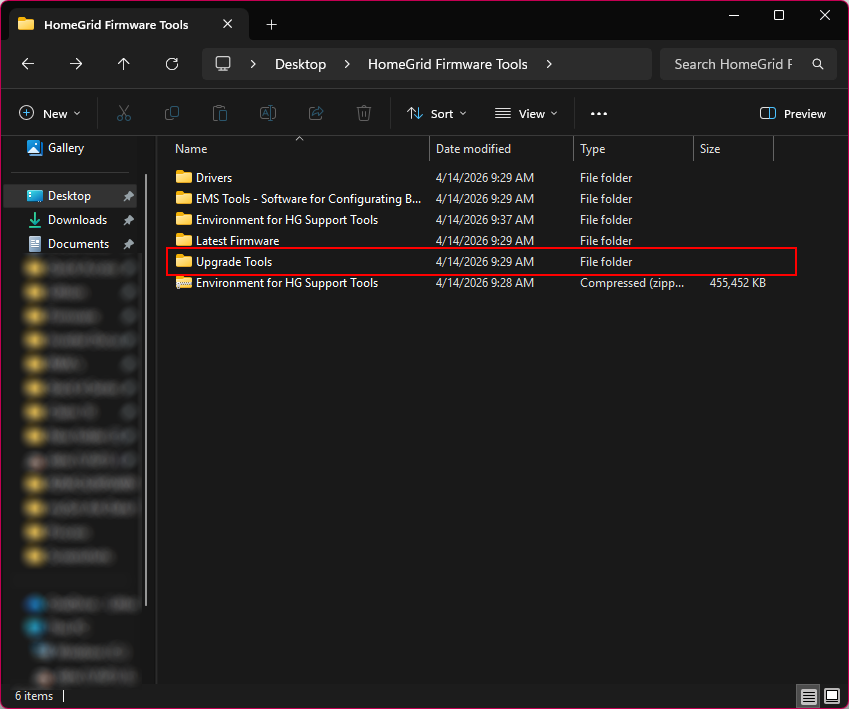
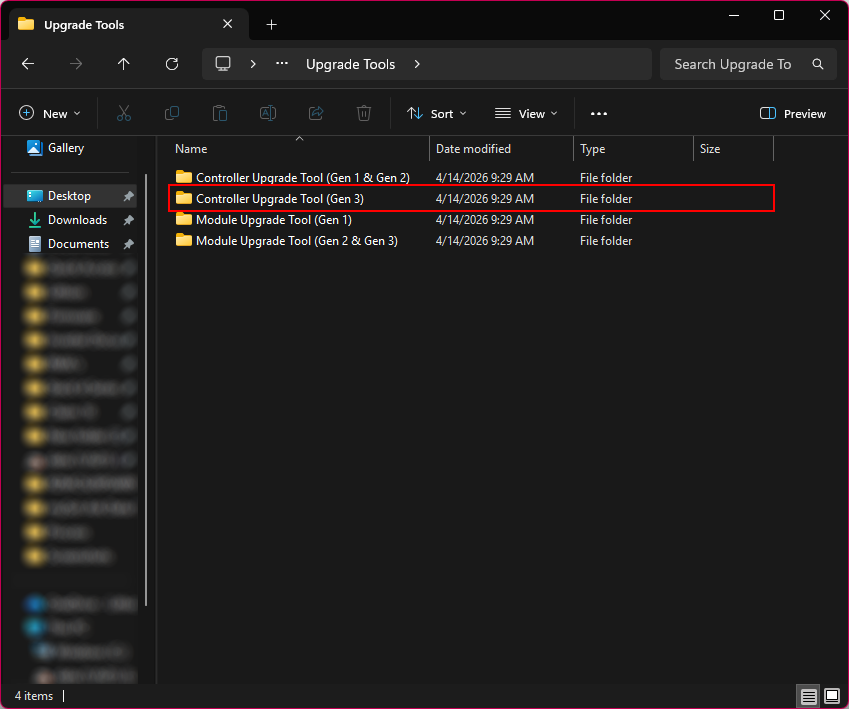
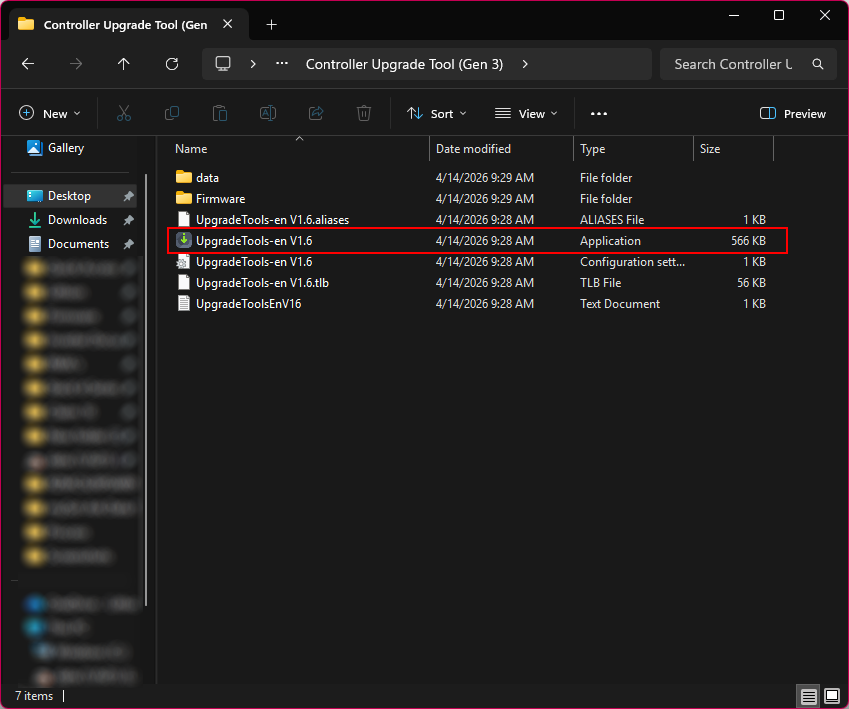
Follow the file pathing below from the original file download to locate the correct program.
1. Open the folder 'Upgrade Tools'
2. Open the folder 'Controller Upgrade Tool (Gen 3)'
3. Run the application 'UpgradeTools-en V1.6'
Section 2 — Perform the update
1. The program should look like this when it first opens — we will change the settings in the next step.
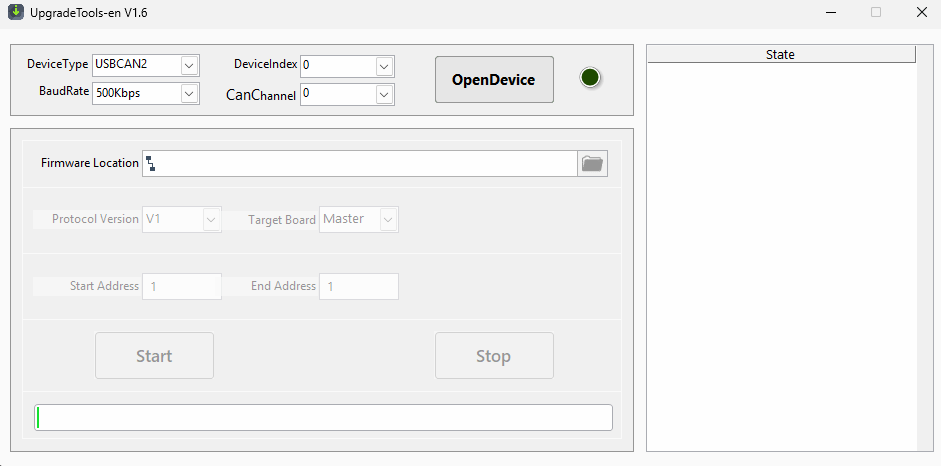
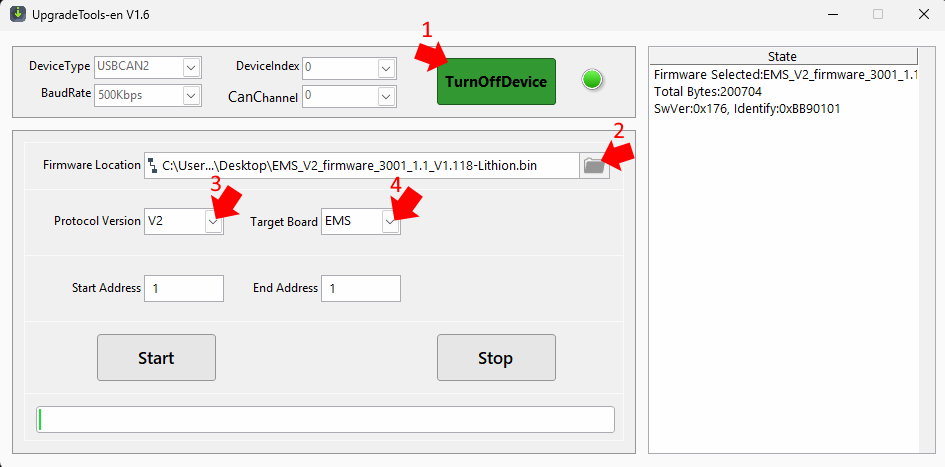
2. We will update the EMS Board first — configure the program with the following steps:
- Click 'OpenDevice'
- The button should go green and the text should change to 'TurnOffDevice'
- The button should go green and the text should change to 'TurnOffDevice'
- Select the firmware selection button and locate the Stack'd Series latest firmware folder. Load the following firmware file:
- EMS_V2_firmware_3001_1.1_V1.118-Lithion.bin
- EMS_V2_firmware_3001_1.1_V1.118-Lithion.bin
- Select the drop-down for Protocol Version and change it from 'V1' to 'V2'.
- Select the drop-down for Target Board from 'Master' to 'EMS'
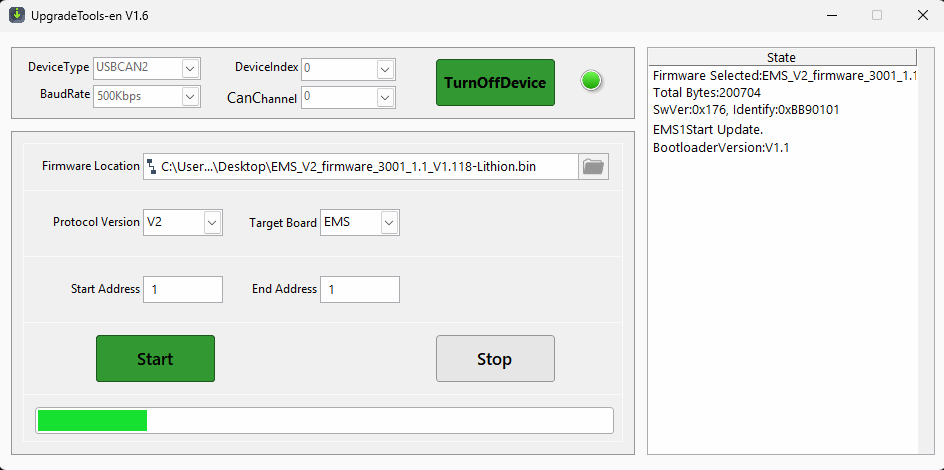
3. Press 'Start'. The button should go green, and the progress bar at the bottom of the program should start moving.
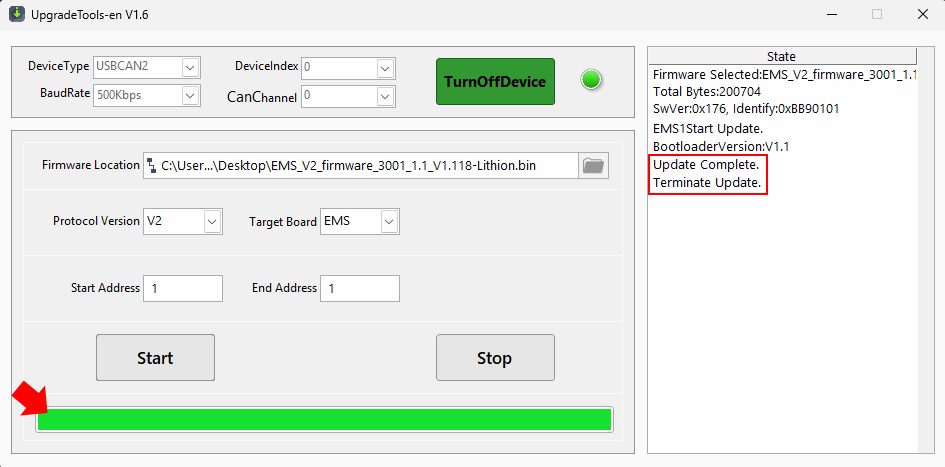
4. Once the update is complete, the progress bar will stop moving and the 'State' box on the right will populate with:
- Update Complete.
- Terminate Update.
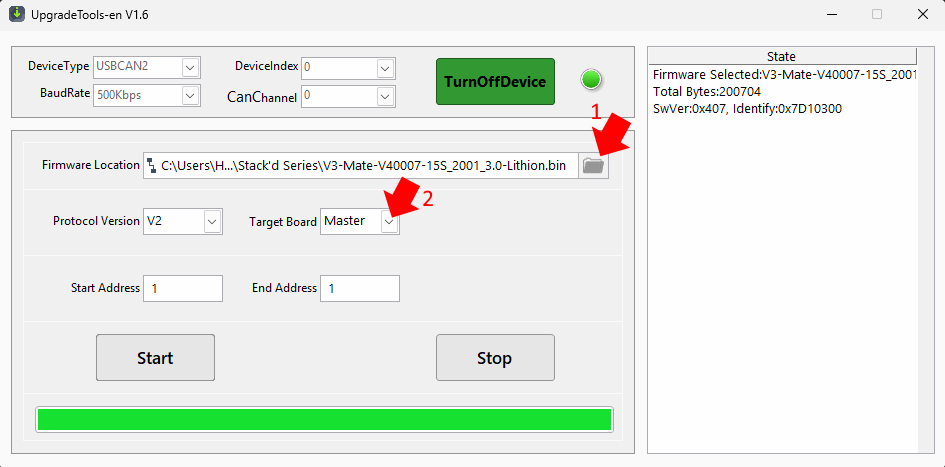
5. Next, we will update the master board — reconfigure the program with the following steps.
- Select the firmware selection button and locate the Stack'd Series latest firmware folder. Load the following firmware file:
- V3-Mate-V40007-15S_2001_3.0-Lithion.bin
- V3-Mate-V40007-15S_2001_3.0-Lithion.bin
- Select the drop-down for Target Board from 'EMS' to 'Master'
6. Press 'Start'. The button should go green and the progress bar at the bottom of the program should start moving.
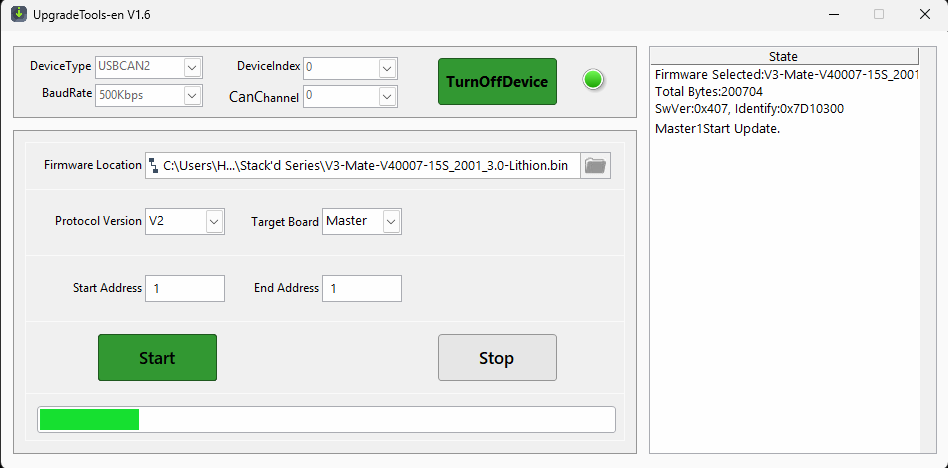
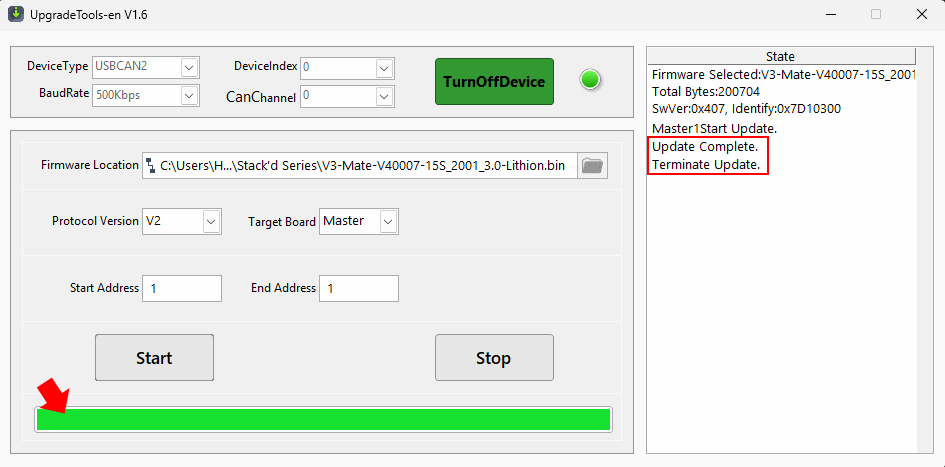
7. Once the update is complete, the progress bar will stop moving and the 'State' box on the right will populate with:
- Update Complete.
- Terminate Update.
⚠️ If the procedure was not successful, and you see a 'failed' message, the board may have bricked. Please check the following guide for unbricking a Generation 3 BMS.
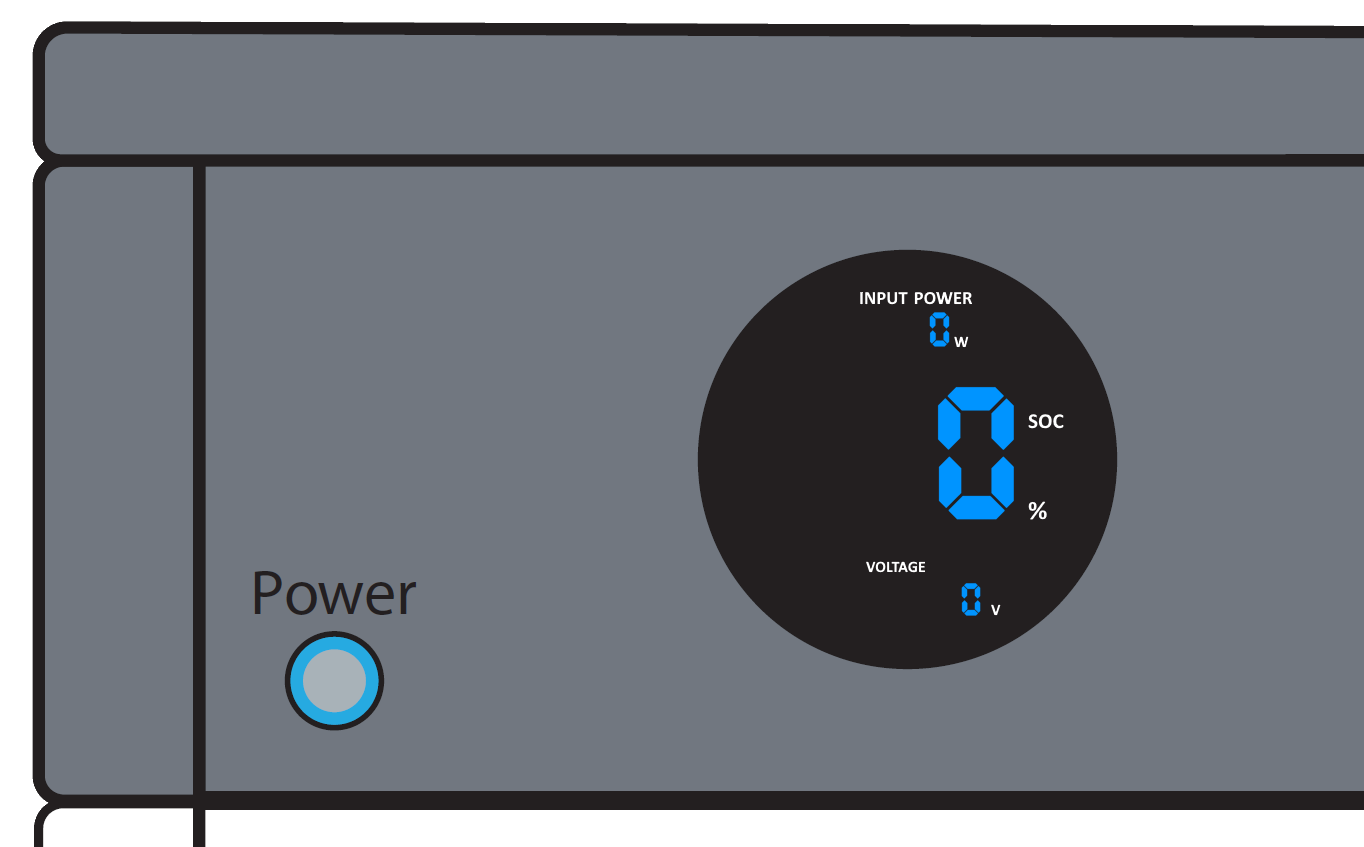
A bricked Generation 3 BMS will show a 0 instead of all values on the display screen. This is normal if the BMS is actively receiving an update, but if it persists, the BMS is likely bricked. Reach out to HomeGrid support for confirmation.
HomeGrid - Guide for unbricking a Generation 3 BMS
Section 3 — Confirmation of Success
Once the process is completed and the program is no longer updating anything, the display should return to normal operation and show no error messages.
Reattach Side Panels
- Reattach the right side panel(s) on the BMS units to cover the ports and dip switches.
Reconnect the BMS to the Inverters
- Reconnect the battery to the inverter by turning on the battery breakers on the inverter(s).
⚠️ This will allow power to flow in and out of the BMS.
In case of any issues or uncertainties, please reach out to HomeGrid Support for further assistance.
Was this article helpful?
That’s Great!
Thank you for your feedback
Sorry! We couldn't be helpful
Thank you for your feedback
Feedback sent
We appreciate your effort and will try to fix the article