Note: This guide may not apply to previous or future firmware releases. Use this guide to install the necessary drivers (USBCAN, RS485, RS232, etc.) for monitoring and troubleshooting of HomeGrid battery systems. We recommend doing this process before any site visits.
TABLE OF CONTENTS
- Laptop Requirements
- Download HomeGrid Firmware Tools
- Installing the Environments
- Installing the Drivers
Laptop Requirements (Windows Only):
Please ensure the Windows laptop you plan to use meets the following minimum requirements:
Operating System: Windows 7 or Newer
⚠️ macOS and Linux are not supported. The programs and drivers are only compatible with Windows OS.
Storage: At least 5GB of free disk space for software and data logs.
Ports: At least one functional USB Type-A port is required to connect the diagnostic cables.
Internet Connection: A stable internet connection is needed to download the required software and drivers.
User Permissions: You will need administrator rights on the laptop to install software and drivers.
Power Source: Please ensure the laptop is plugged in to avoid the battery running low during this process.
Sleep Mode: Ensure the laptop will not go to sleep during this, so as not to interrupt any active processes.
Downloading HomeGrid Firmware Tools
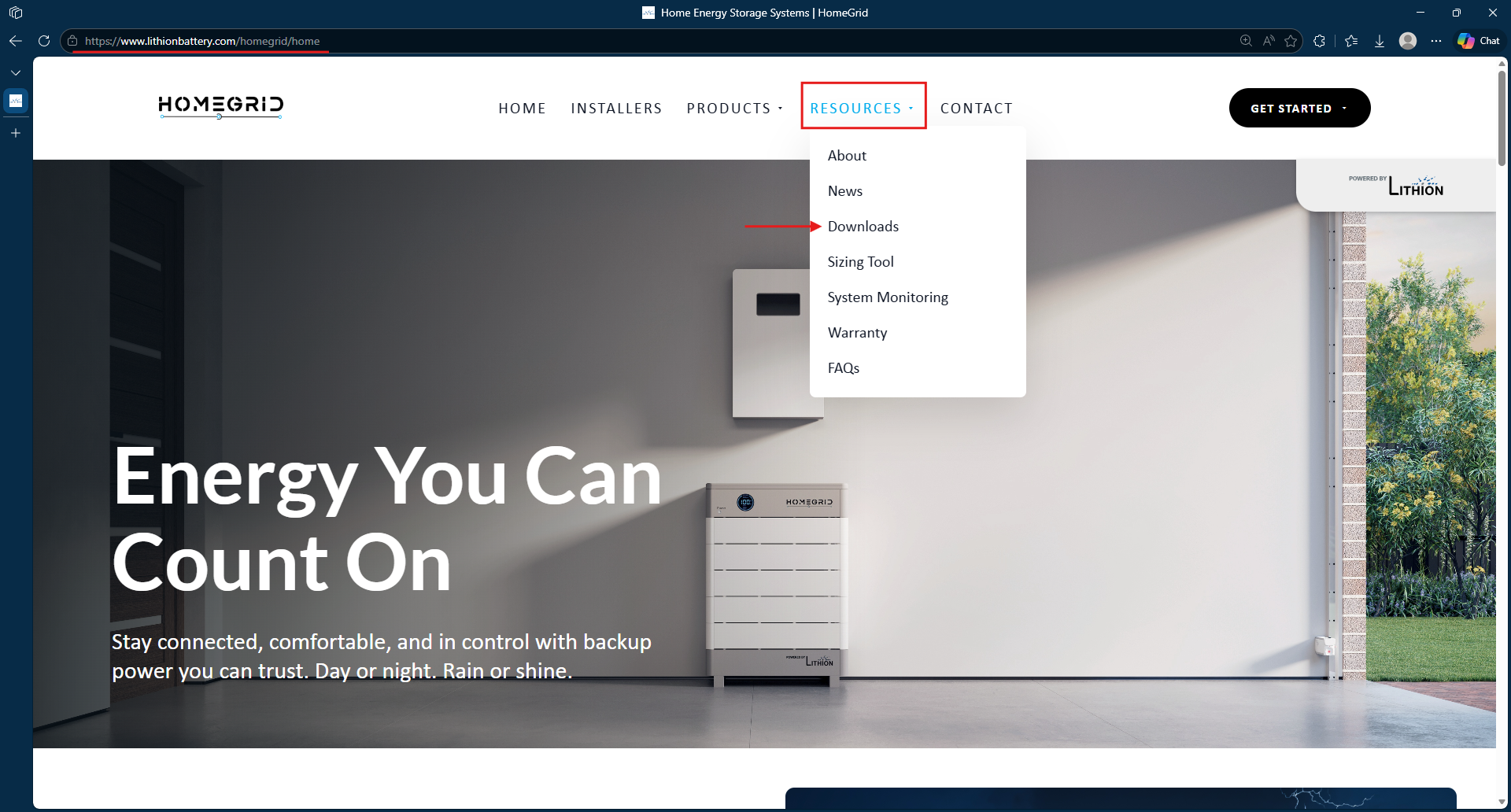
2. Under ‘Support Center’, select ‘HomeGrid Firmware Tools’ and allow the file to download. The file is 480 MB and will be named ce4cf856f7d72409b3950a16c418d3dacb50adc3.zip
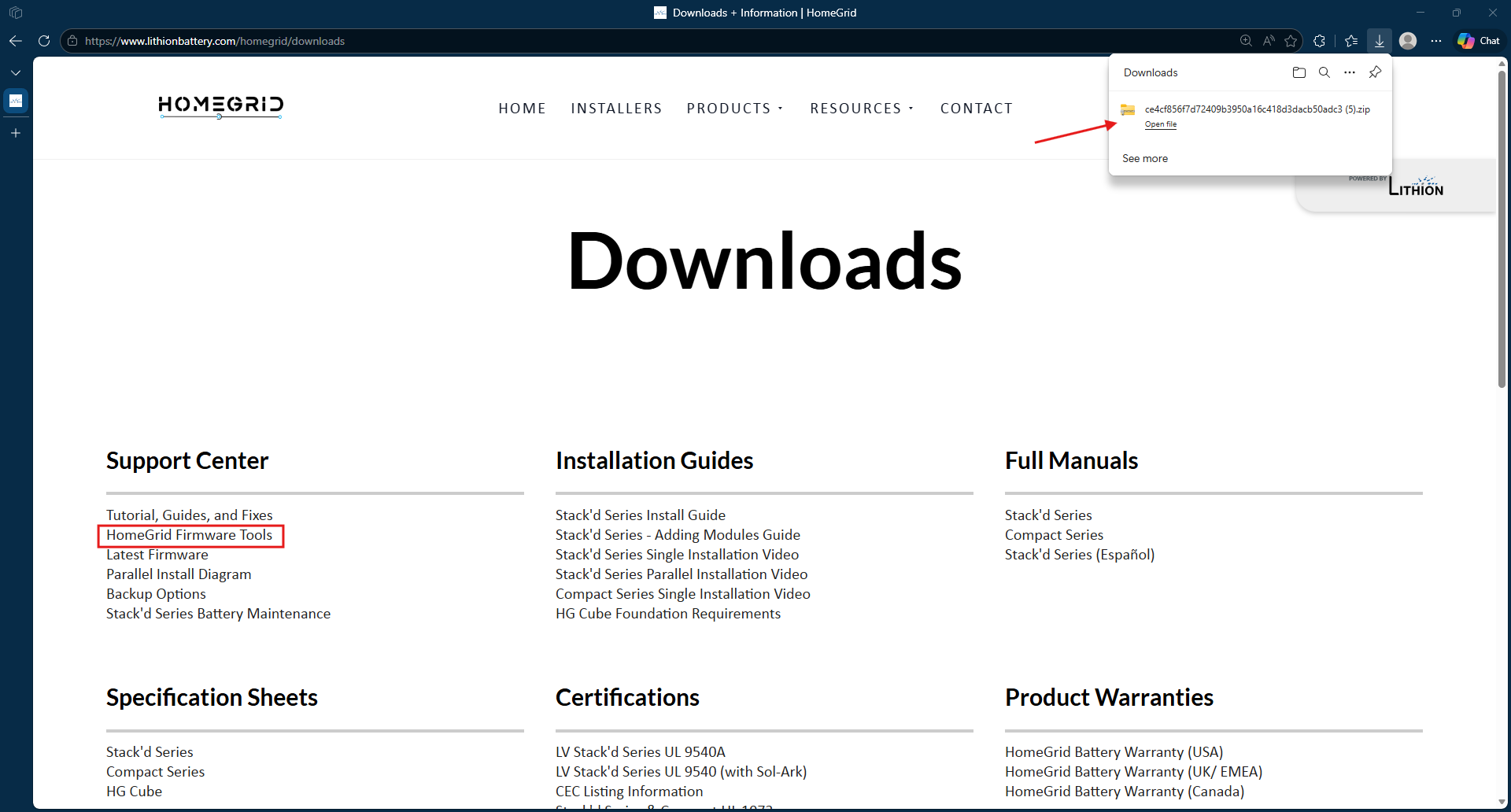
3. Once the download has been completed, navigate to your selected download destination from step 2. The default location is normally the Downloads folder.
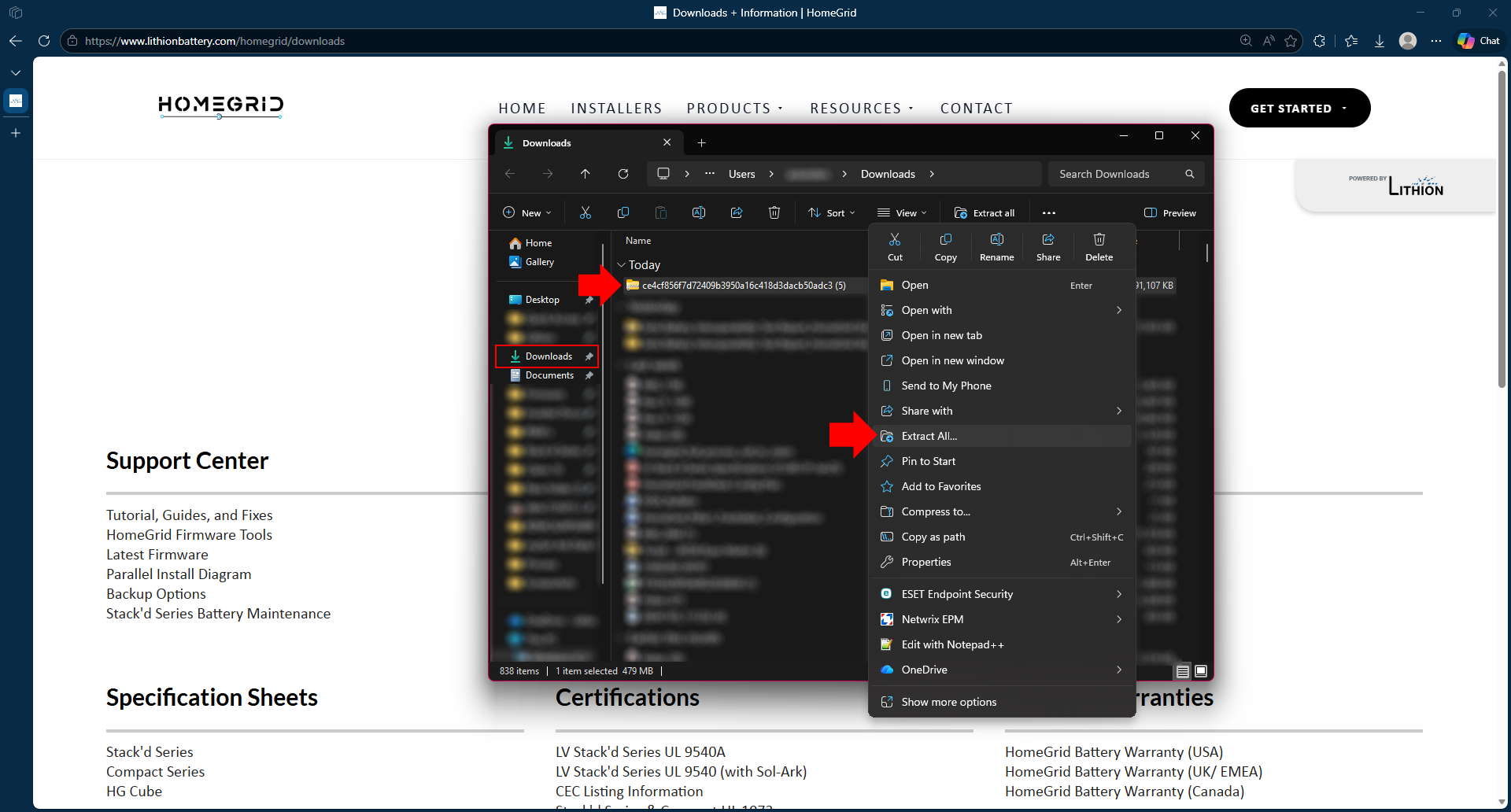
Right-click on the file named 'ce4cf856f7d72409b3950a16c418d3dacb50adc3.zip' and extract the file, select your preferred file destination (we recommend extracting to the desktop to be able to easily locate the files.
Note: We would recommend changing the name of the file to something like 'HomeGrid Firmware Tools'. This is how the folder will be referenced for the rest of the guide.
4. After extraction is complete, you’ll notice the ‘HomeGrid Firmware Tools’ folder has been created.
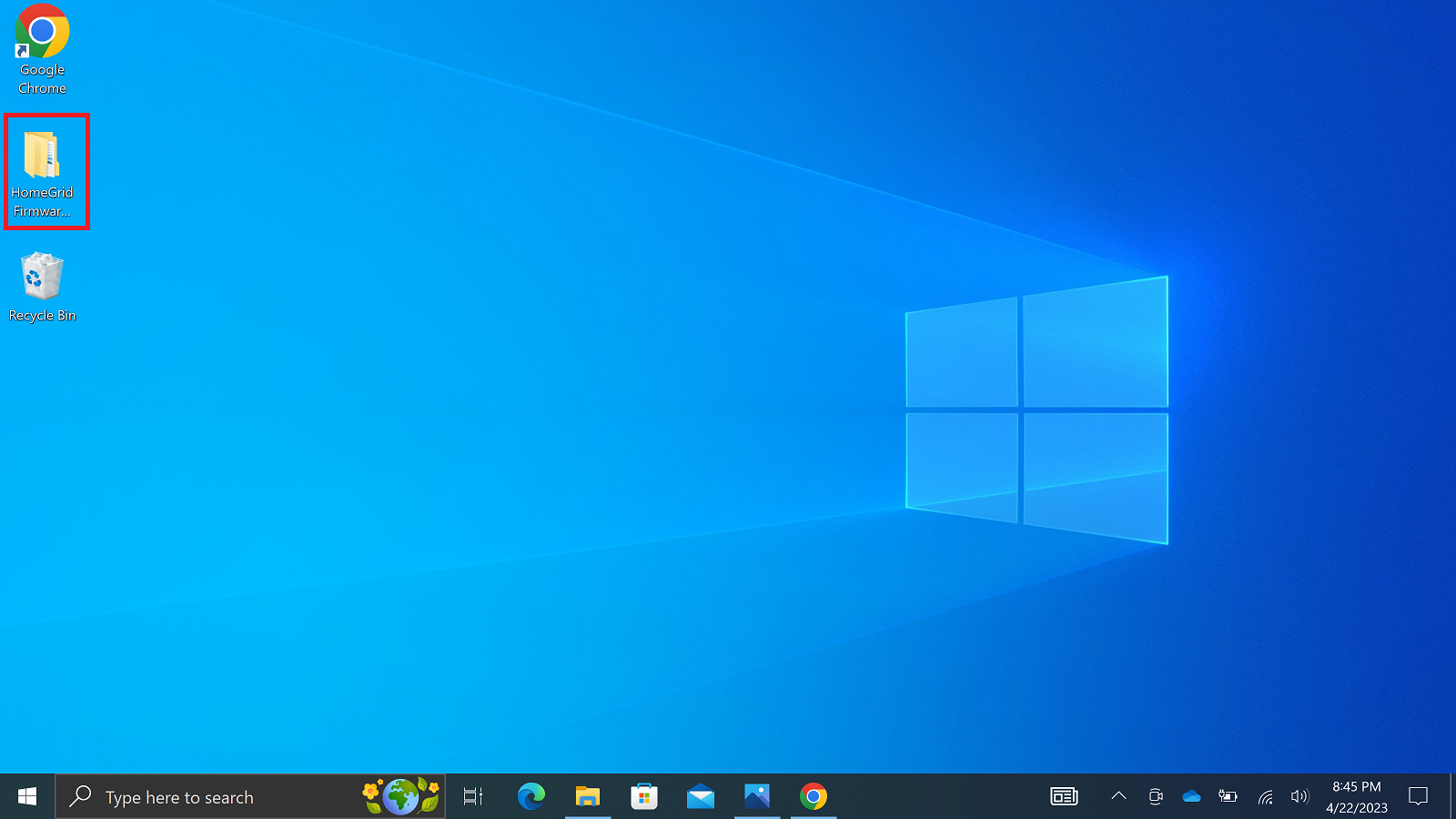
Note: It is important to ensure the downloaded file has been properly extracted before continueing. Improper setup could lead to issus when attempting to use these files & programs.
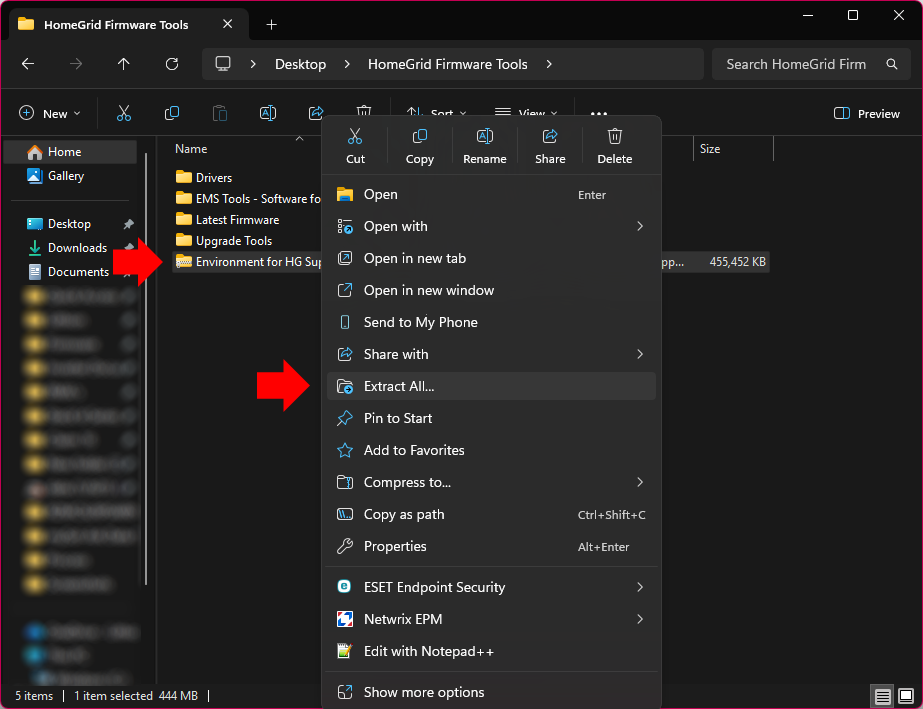
5. Open the created folder, you should see 5 folders. Right click on the folder 'Environment for HG Support Tools' and select 'Extract All...'.
Set the destination for the file to the HomeGrid Firmware Tools folder we created to keep everything uniform.
Installing the Environments
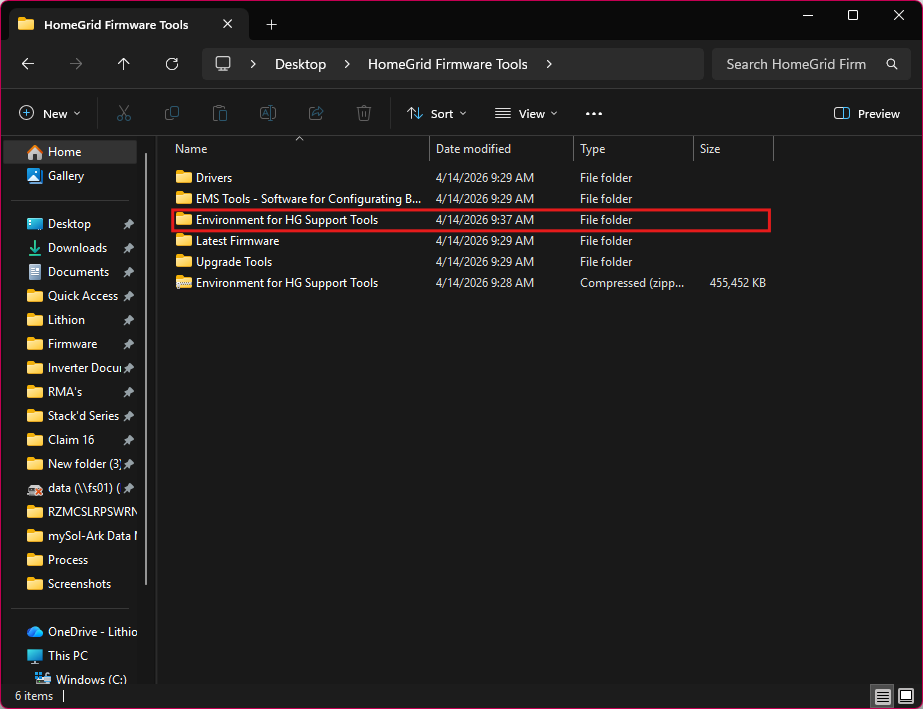
6. Open the unzipped folder we just extracted, named 'Environment for HG Support Tools'.
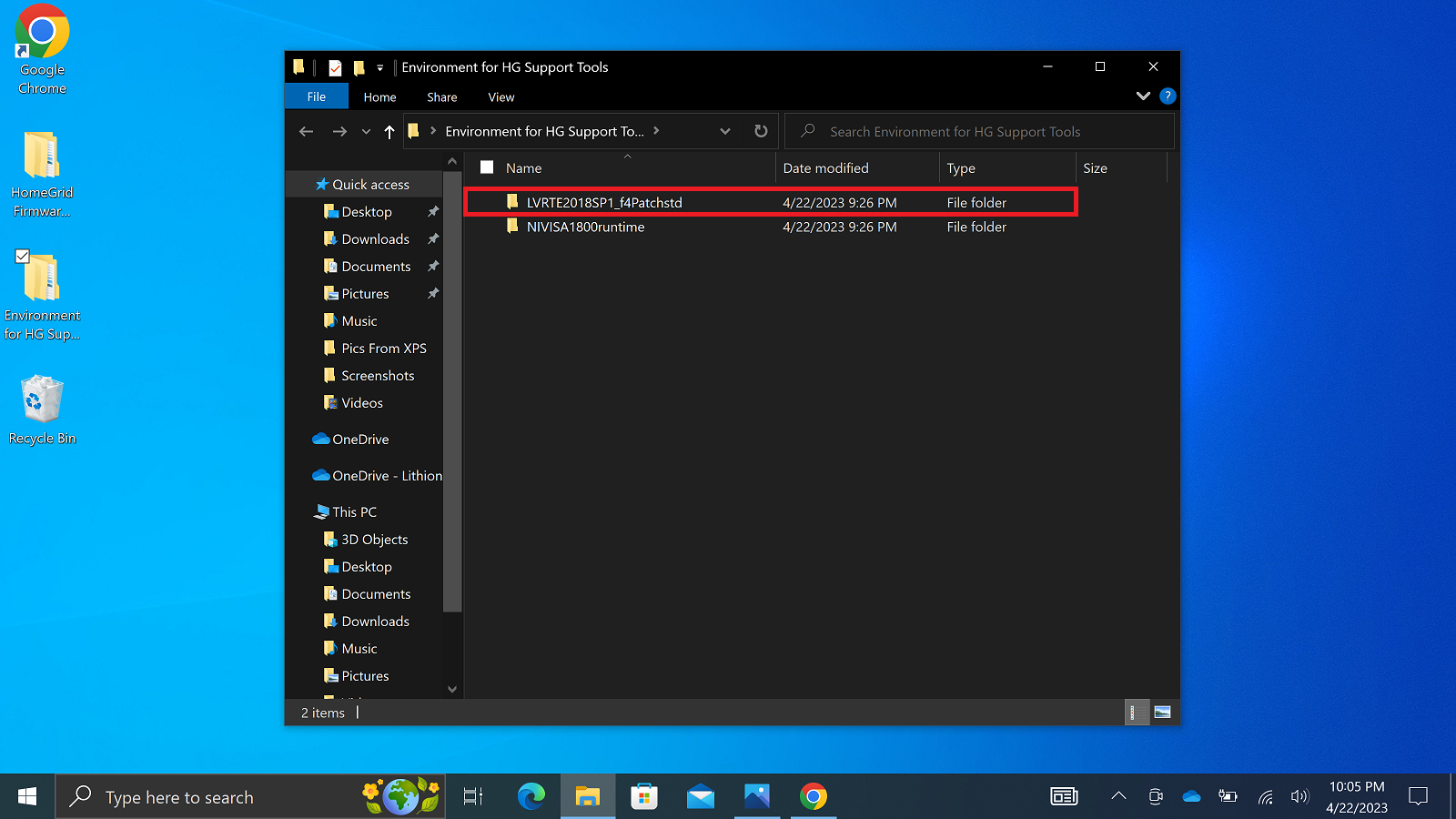
7. Open the ‘Environment for HG Support Tools’ folder, then open the ‘LVRTE2018SP1_f4Patchstd’ folder.
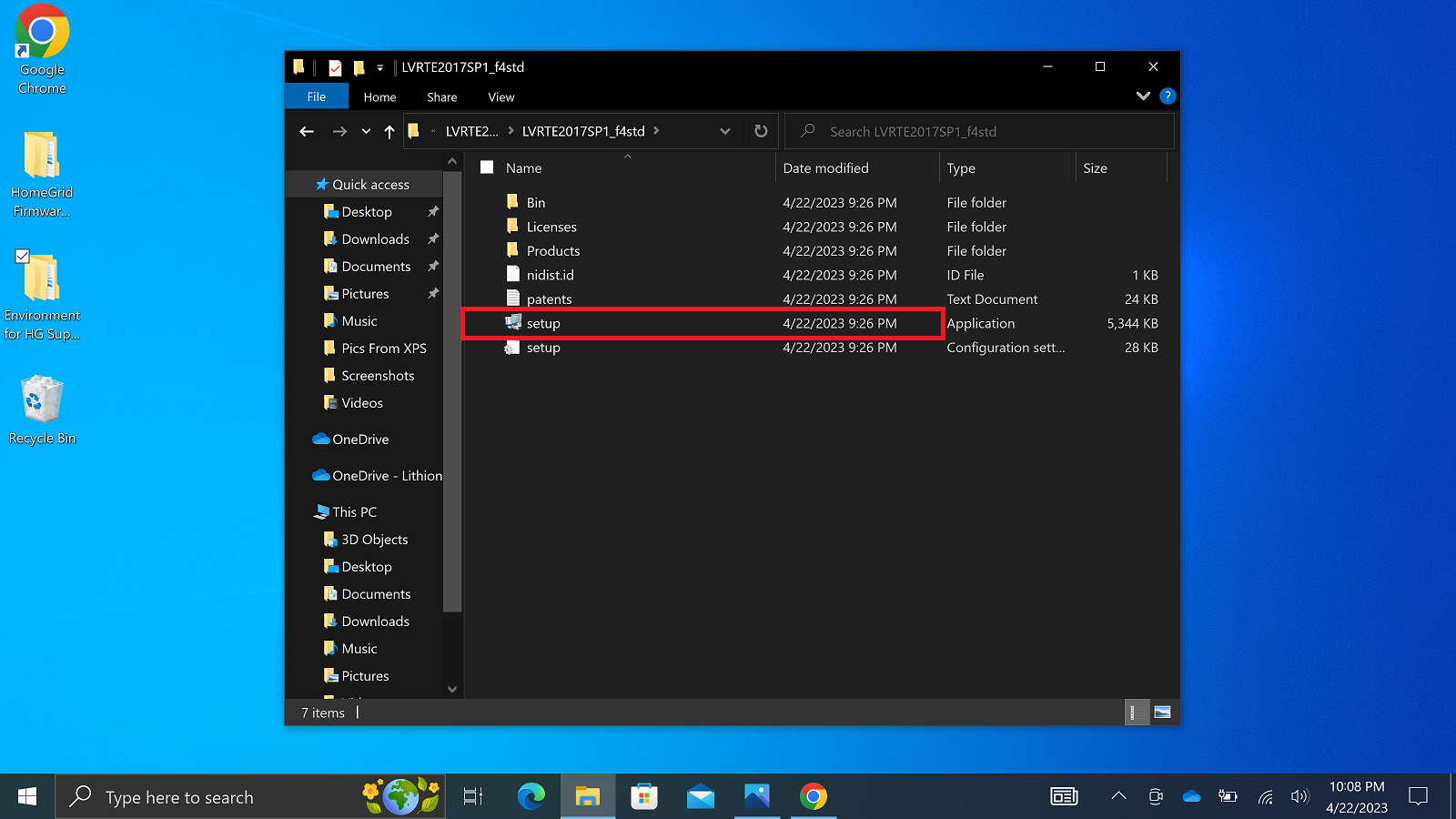
8. Open the ‘setup’ application file.
9. Navigate through the prompts in the installation wizard until the installation starts. You will need to accept the requested license agreement when prompted.
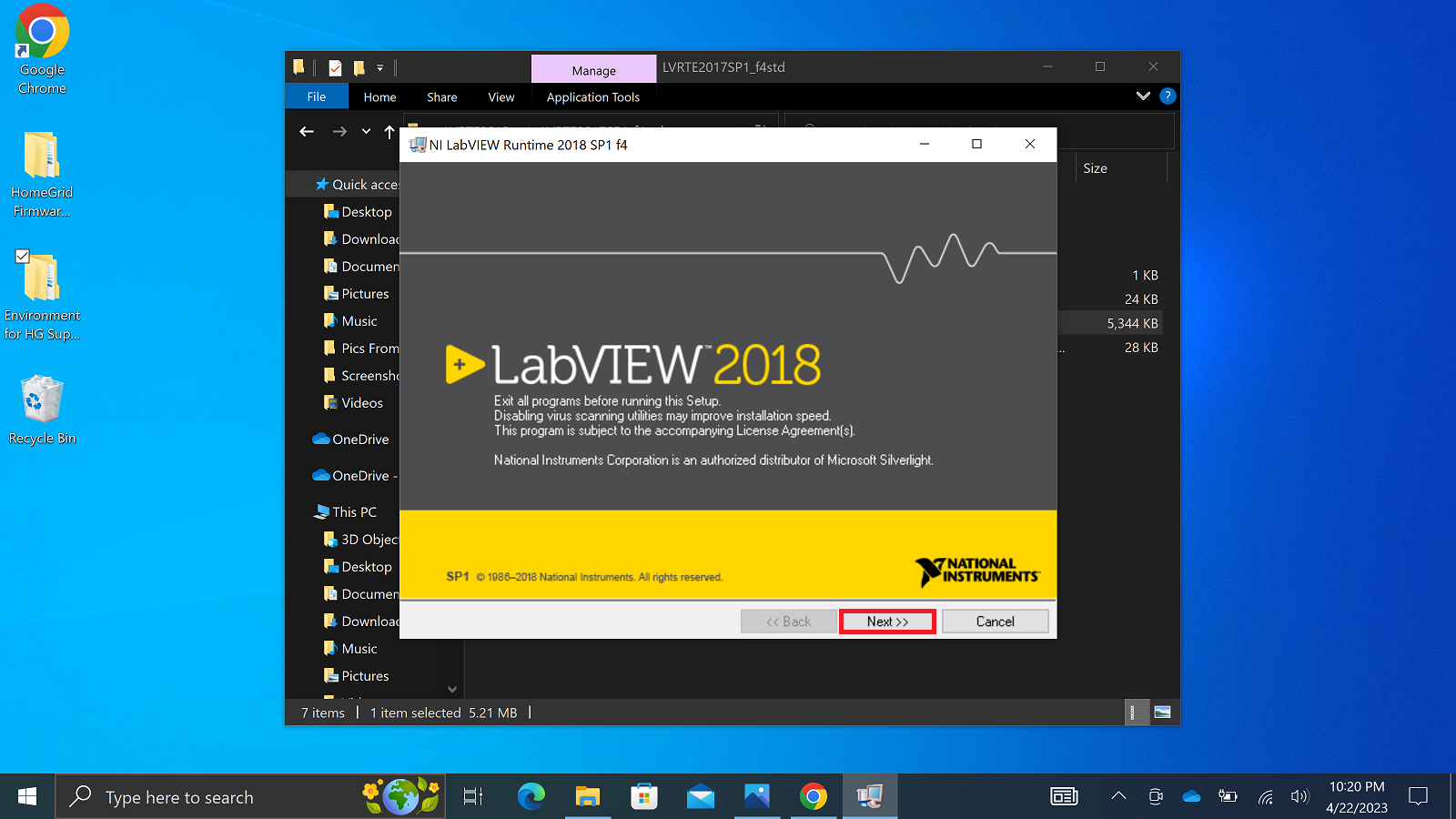
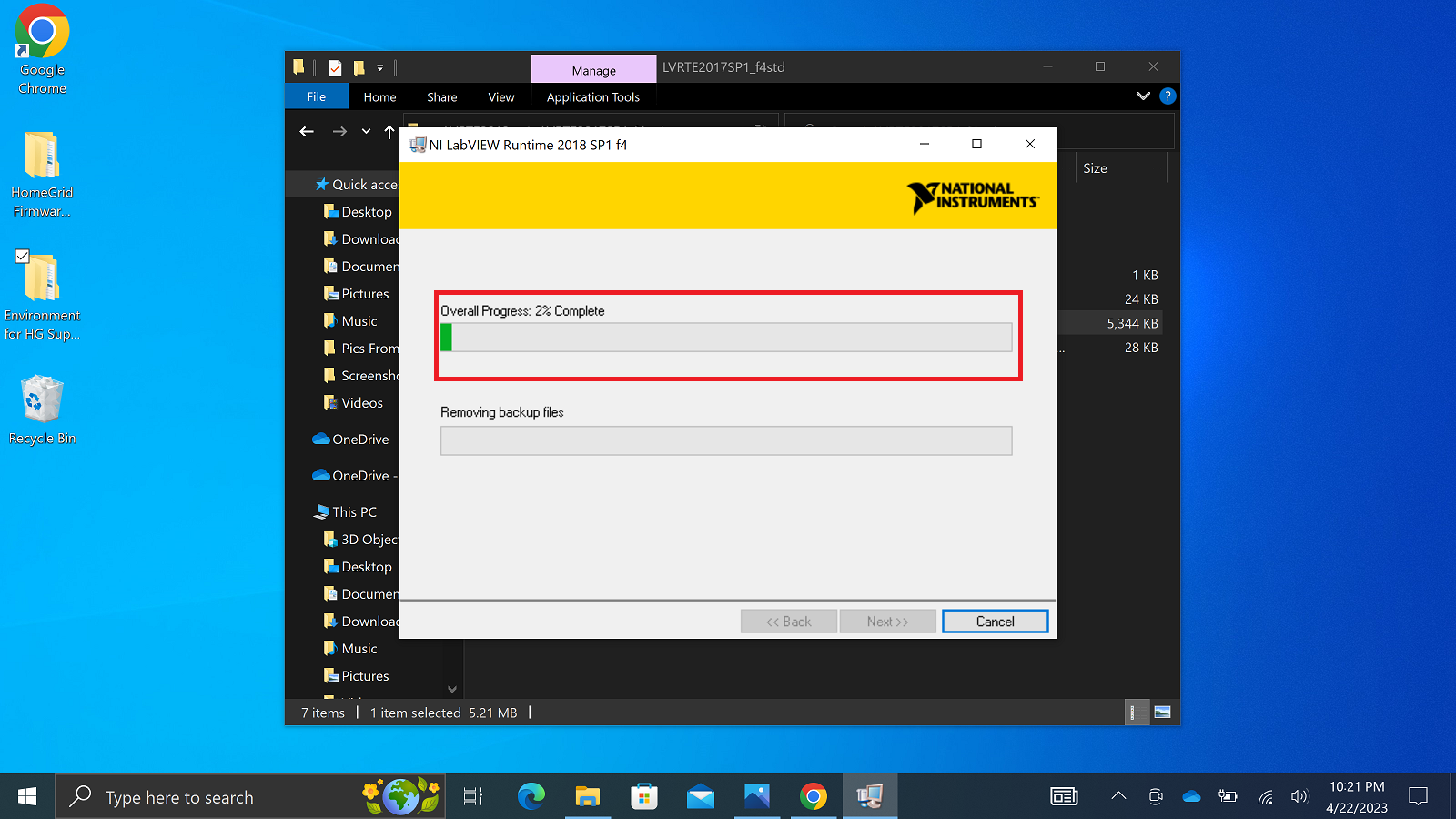
10. Once the installation is completed, select ‘Next’. This will prompt you to restart your PC, select restart later. We will restart the computer at the end of this process.
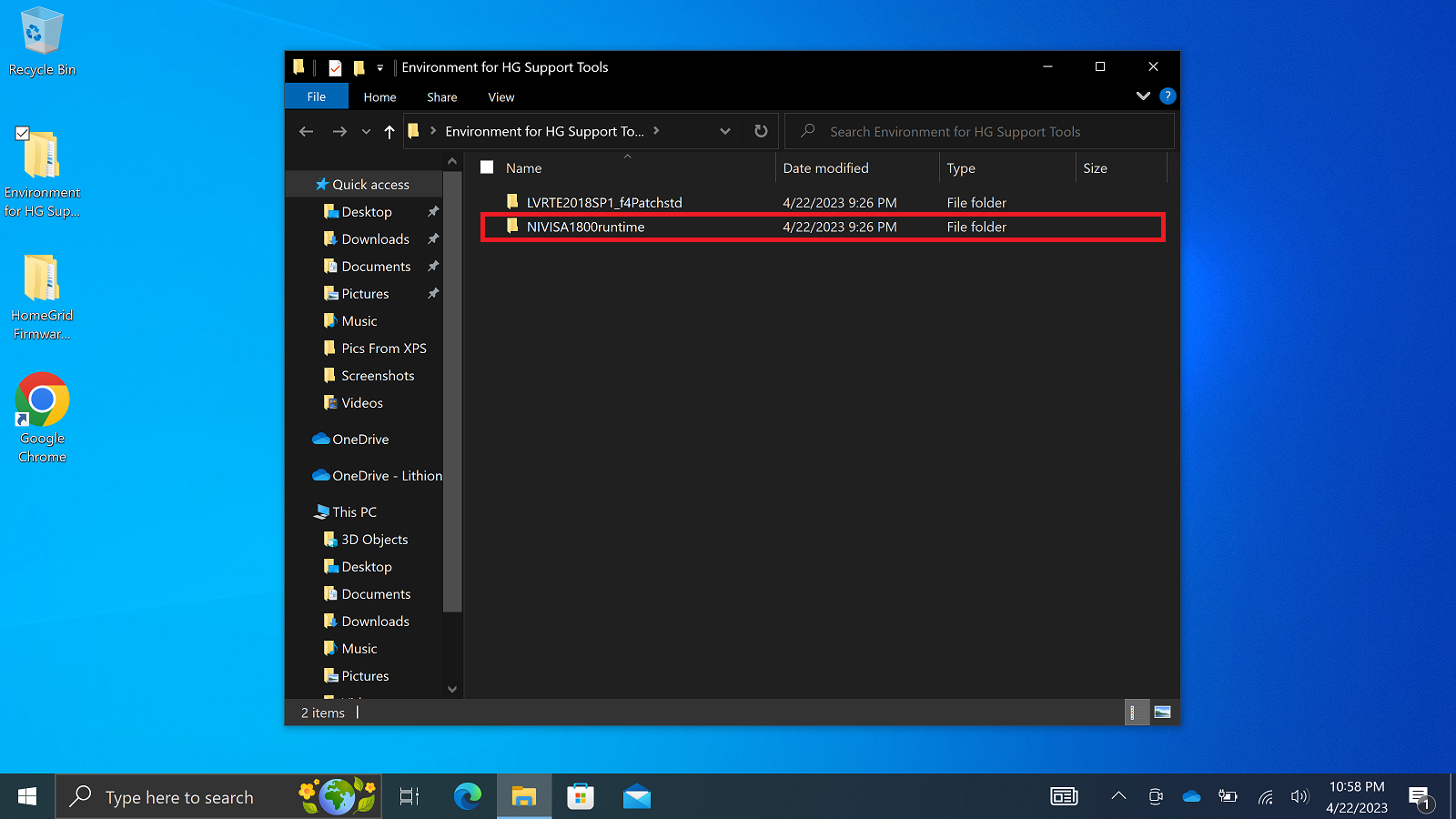
11. After this is complete, navigate back to the ‘Environment for HG Support Tools’ folder and open the ‘NIVISA1800runtime’ folder.
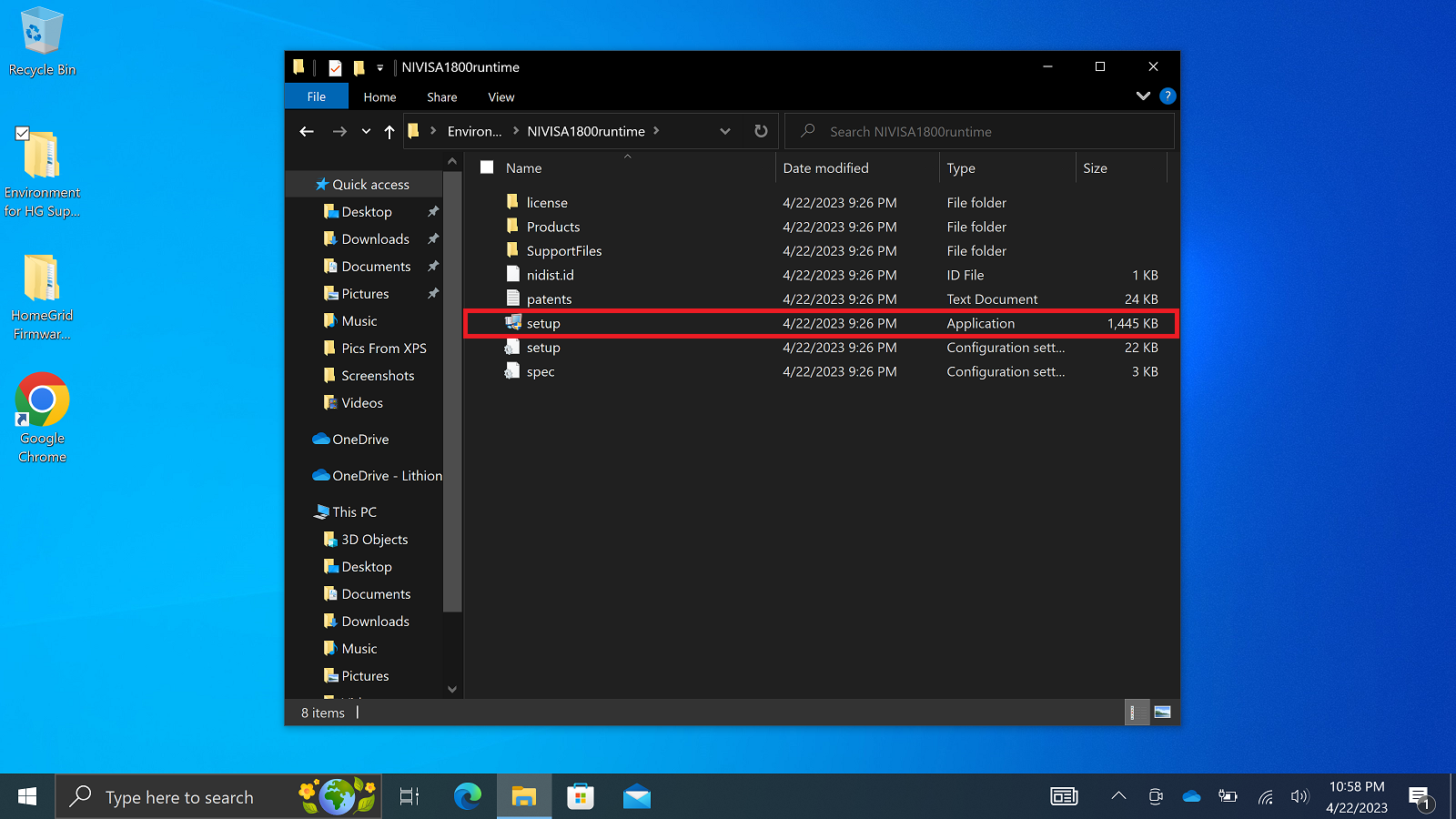
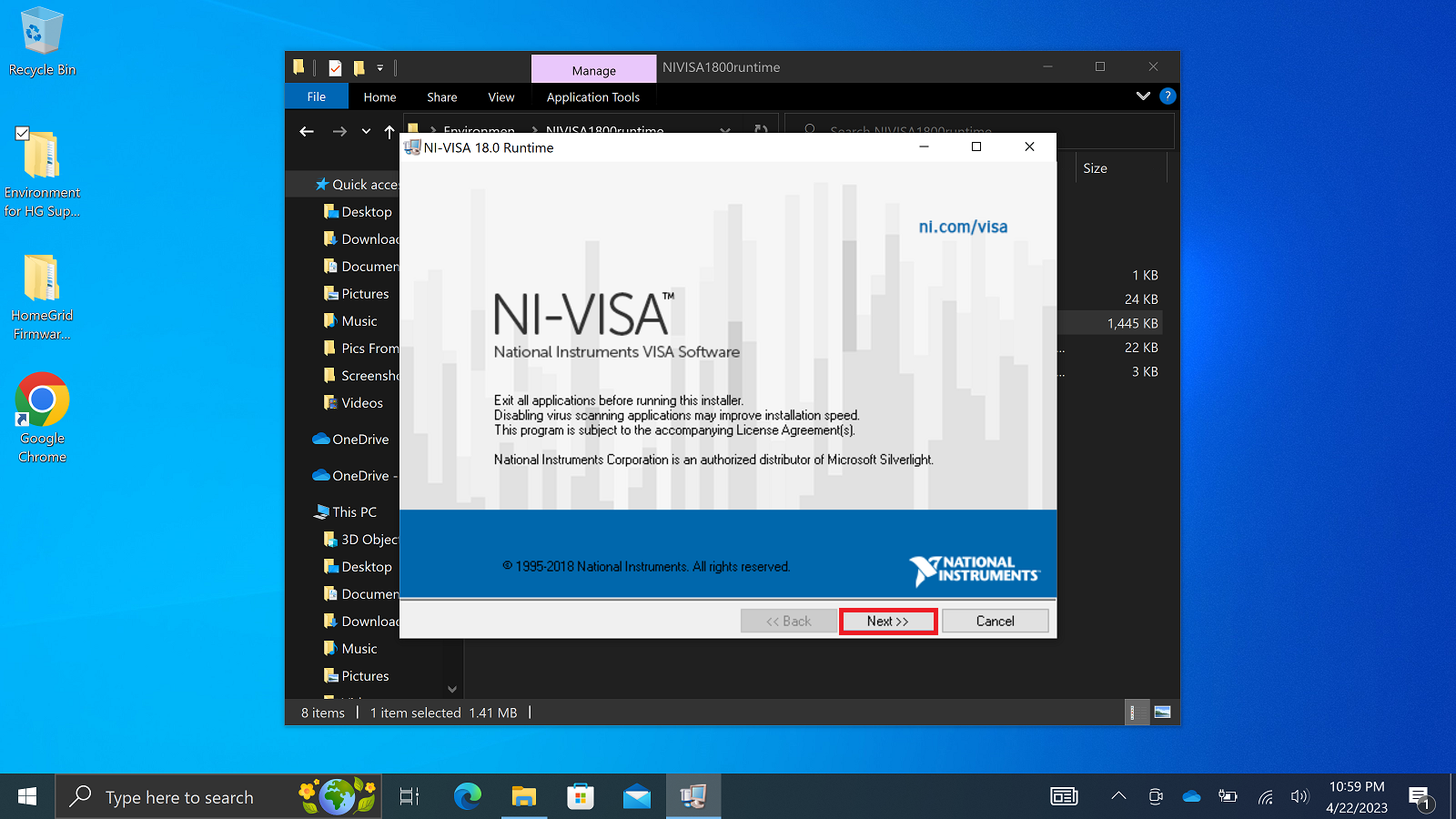
12. Select and run the ‘setup’ application.
13. Navigate through the prompts in the installation wizard until the installation starts. You will need to accept the requested license agreement when prompted.
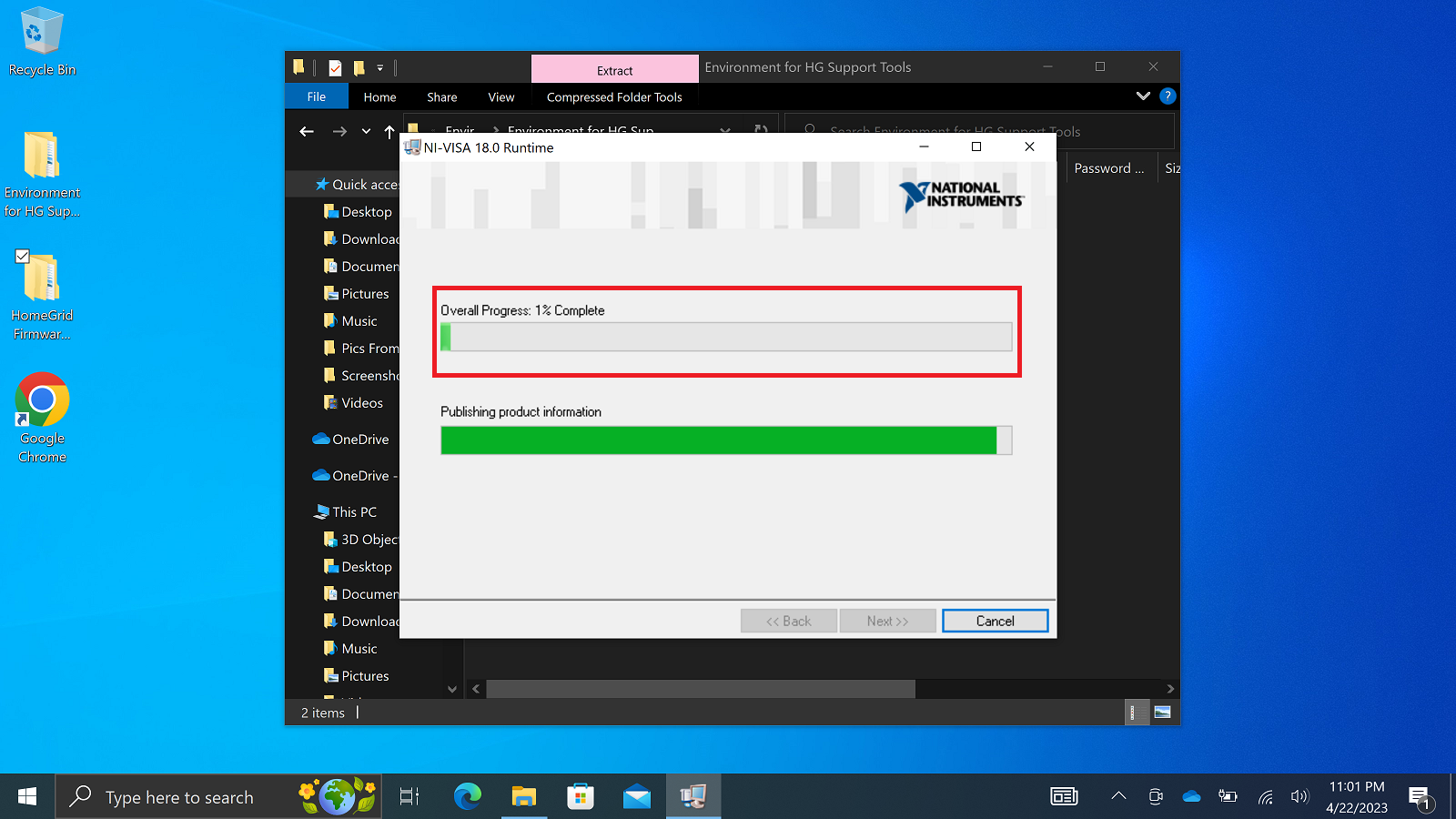
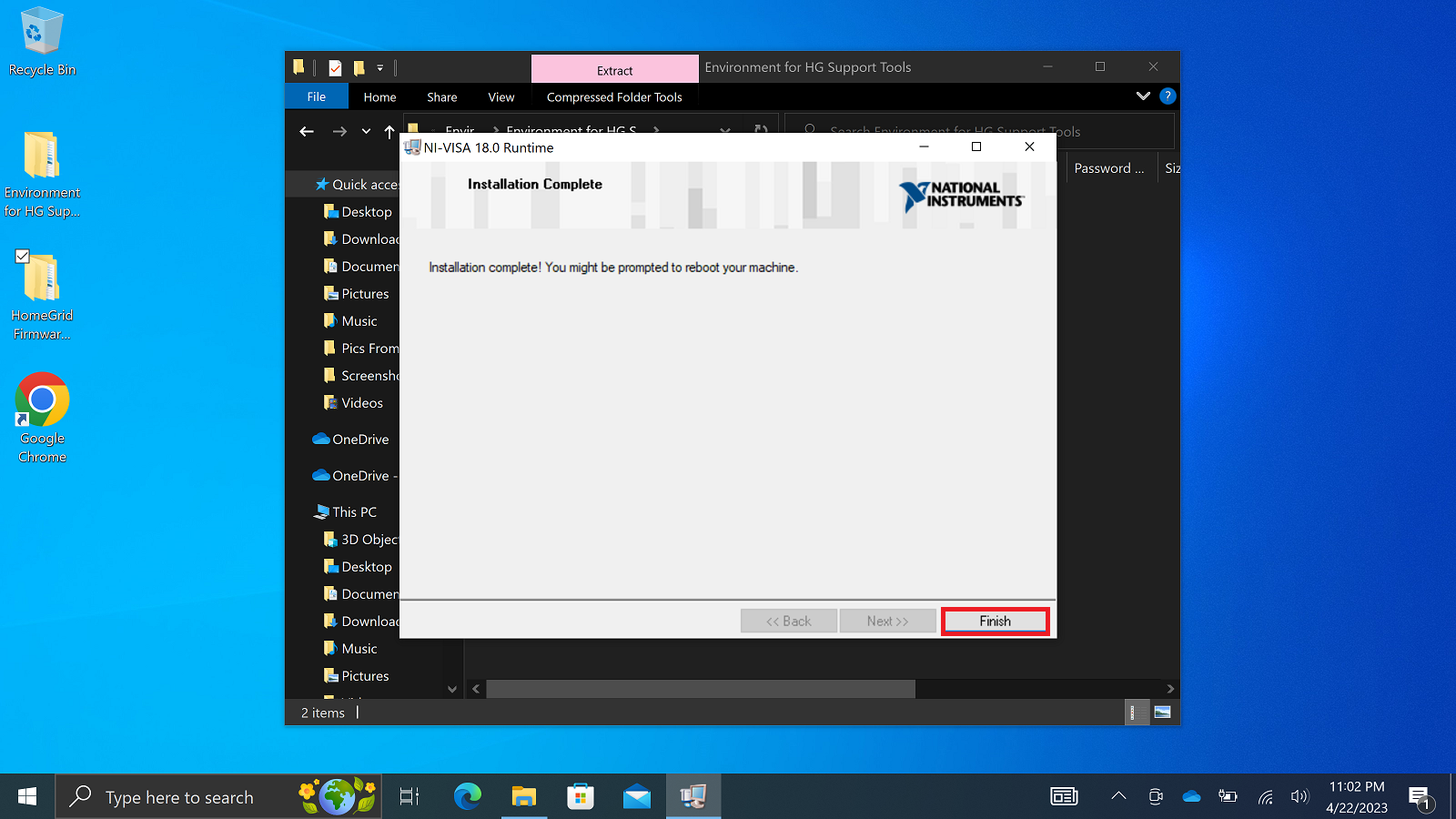
14. Once the installation is completed, select ‘Finish’. This will prompt you to restart your PC, select restart later. We will restart the computer at the end of this process.
Installing the Drivers
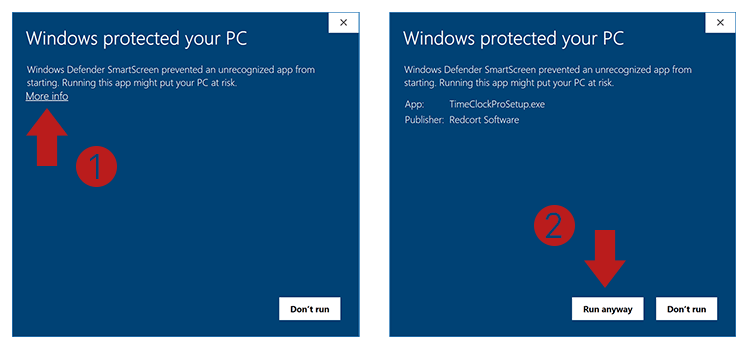
Note: During this process, you may be prompted with the following message. Follow the below steps to clear and continue the installation process.
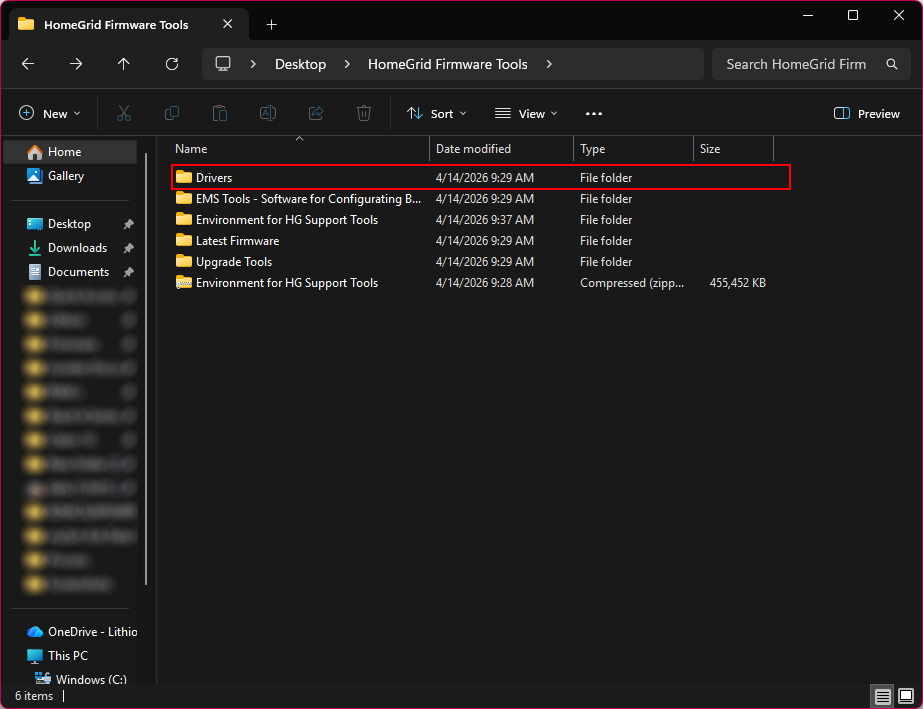
15. Navigate back to the 'HomeGrid Firmware Tools' folder and open the 'Drivers' folder.
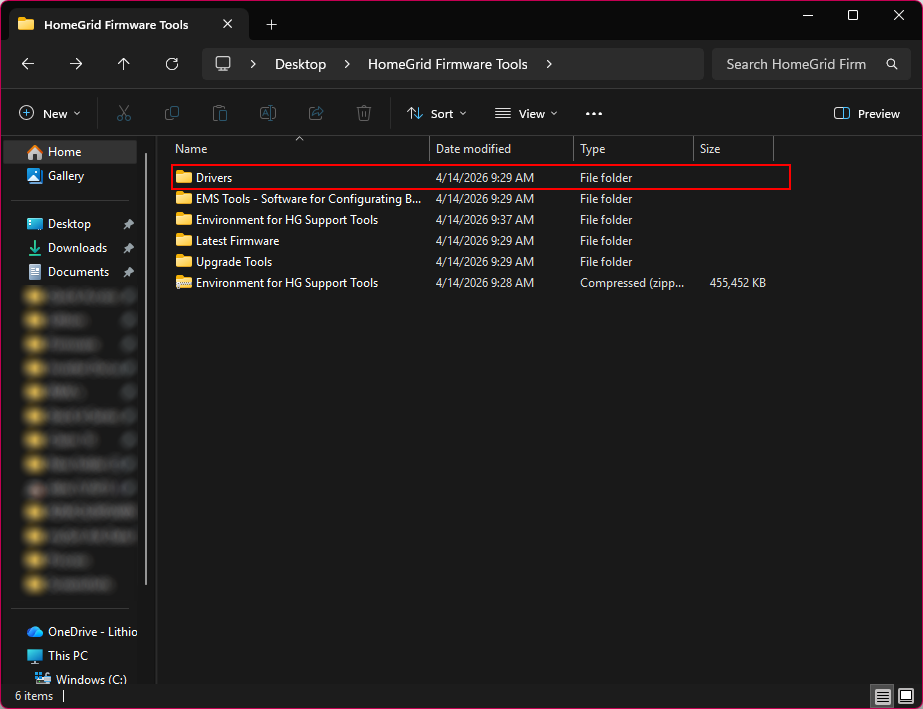
16. Open the 'RS232 DRIVERS' folder.
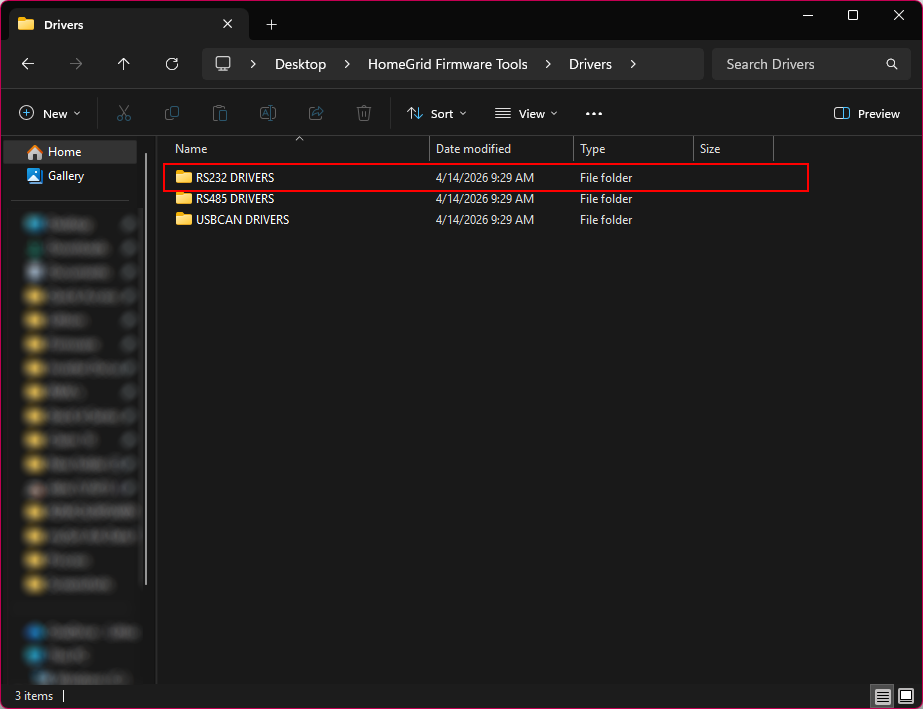
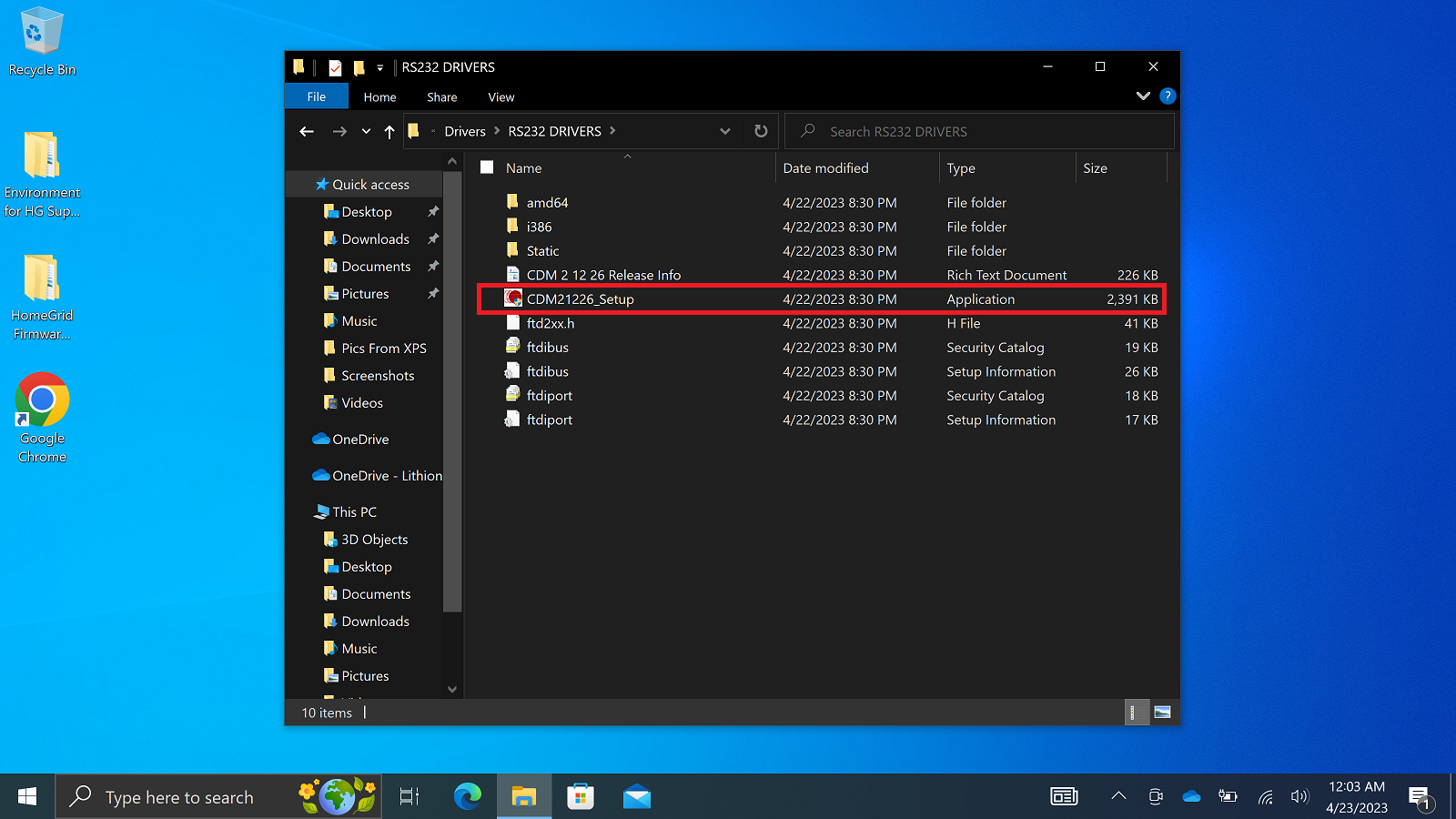
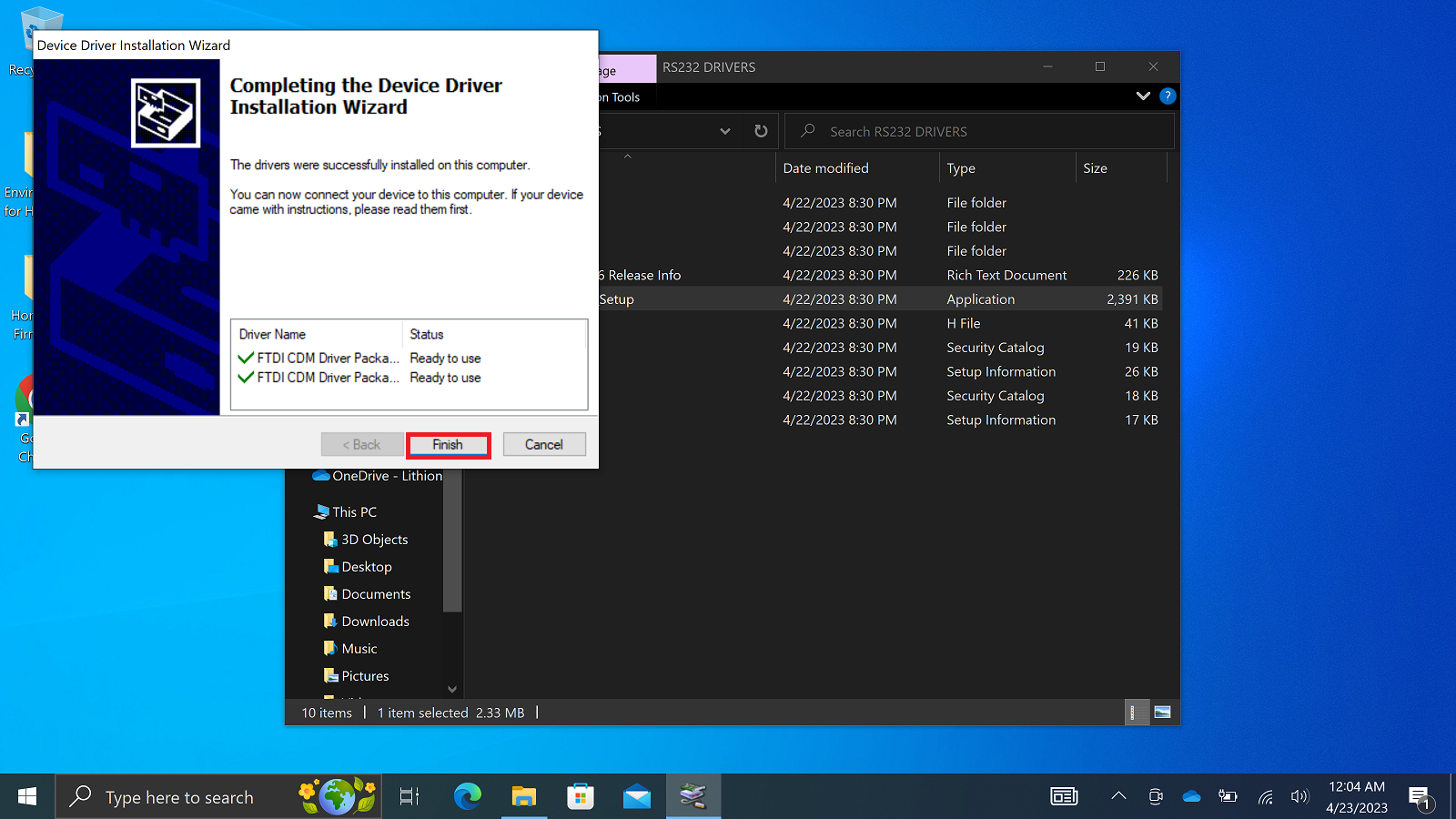
17. Select and open the ‘CDM21226_Setup.exe’ application file to begin the ‘RS232’ driver install.
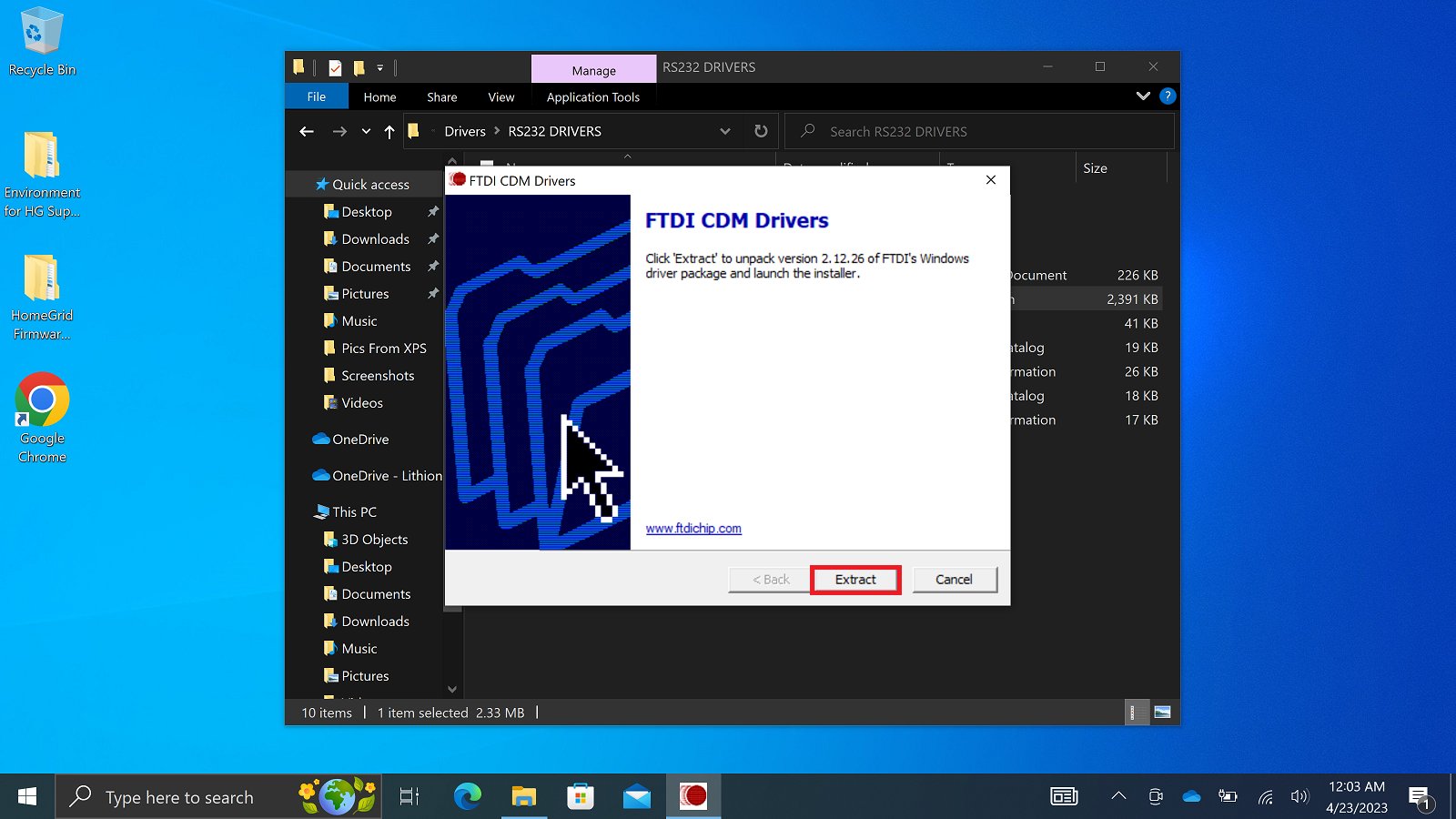
Upon opening the application file, the installation wizard should appear. Navigate through the prompts to install the RS232 drivers.
Upon completion, select ‘Finish’.
18. Navigate back to the 'HomeGrid Firmware Tools' folder and open the 'Drivers' folder.
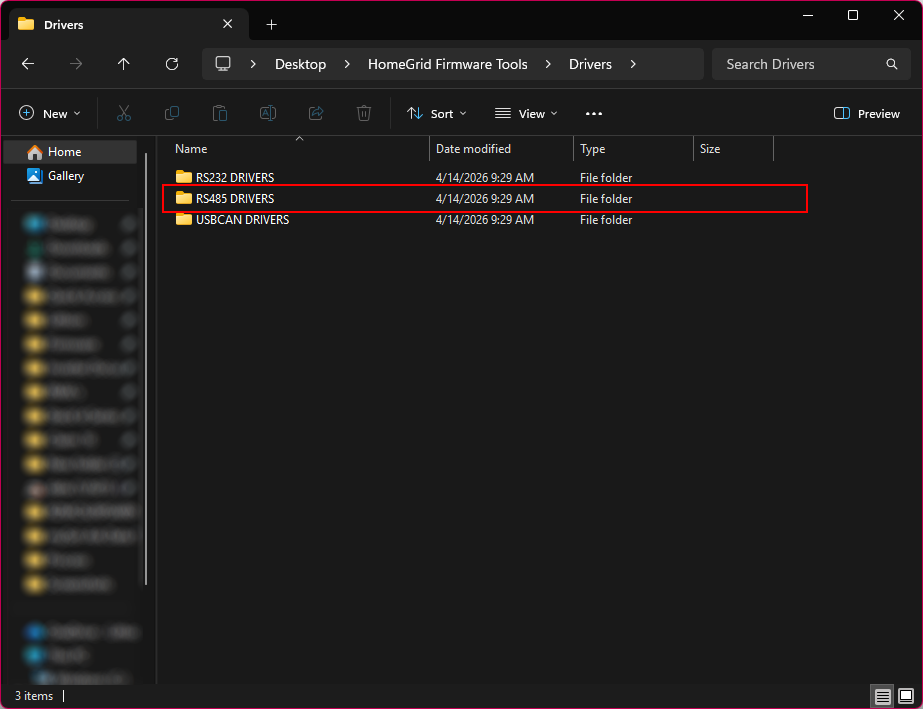
19. Open the 'RS485 DRIVERS' folder.
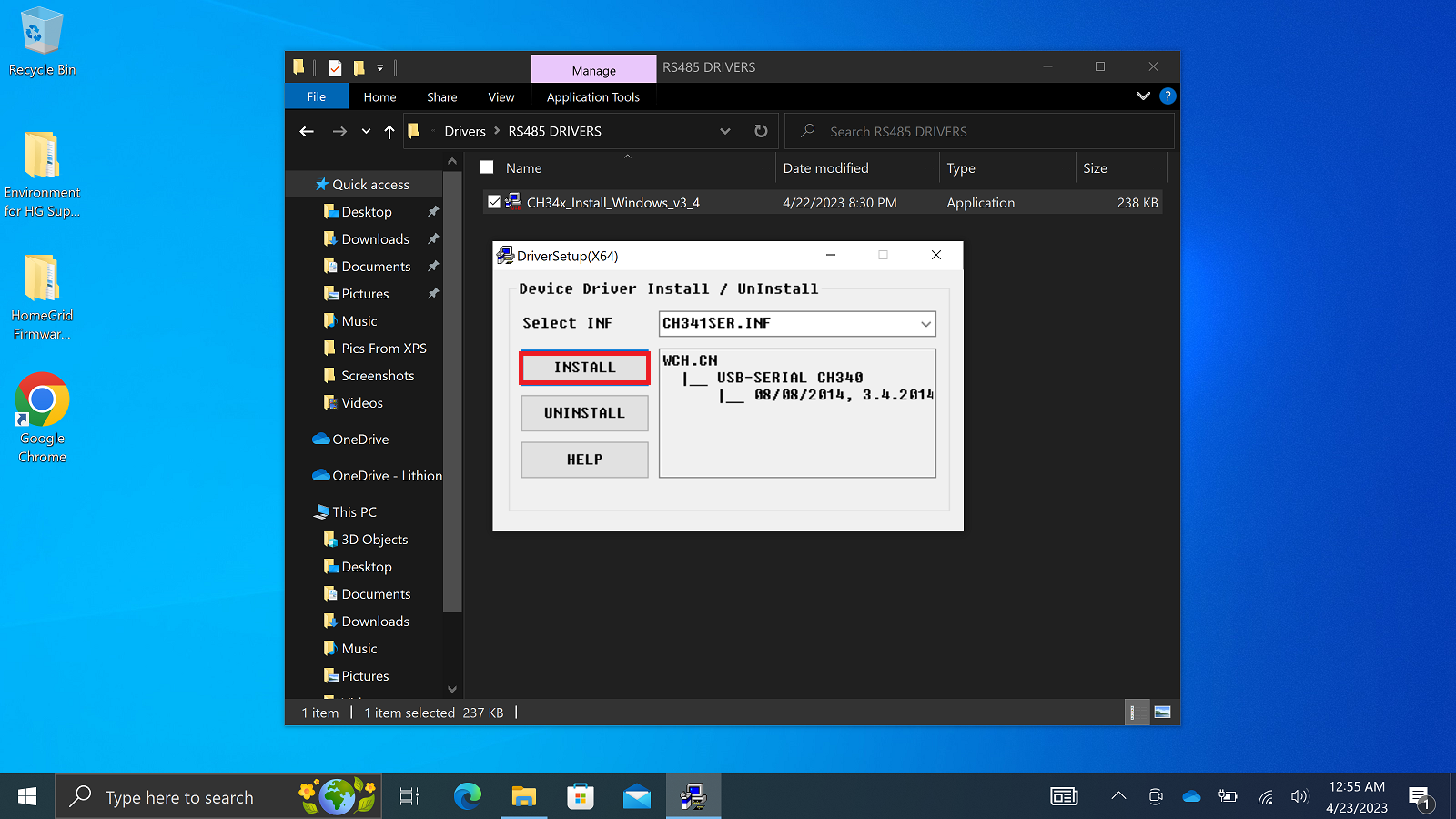
20. Select and open the ‘CH34x_Install_Windows_v3_4.EXE’ application file. (Figure 56)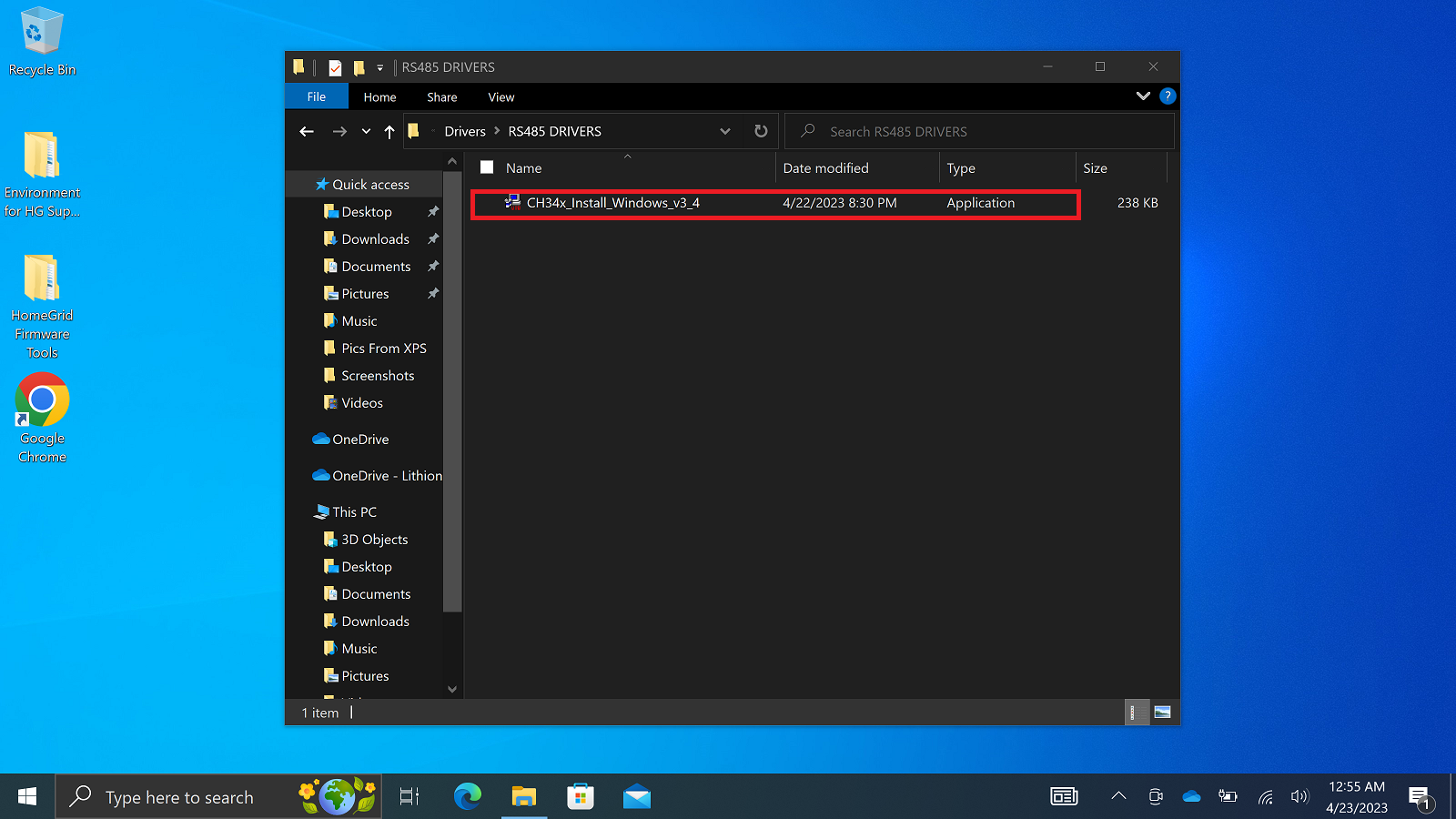
Upon opening the application file, the installation wizard should appear. Navigate through the prompts to install the RS485 drivers.
Select ‘INSTALL’ to begin.
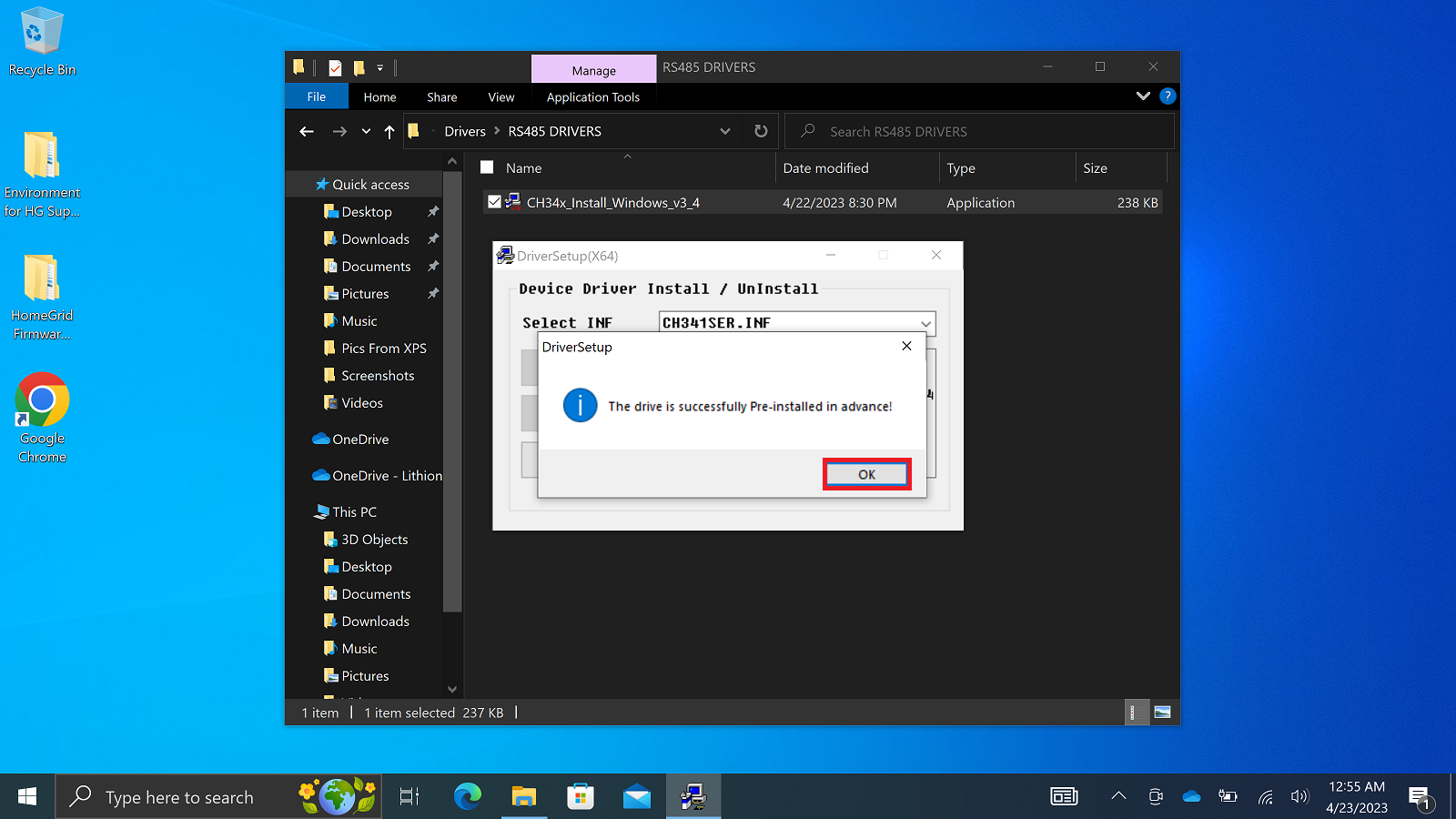
Press ‘OK’ when installation is complete.
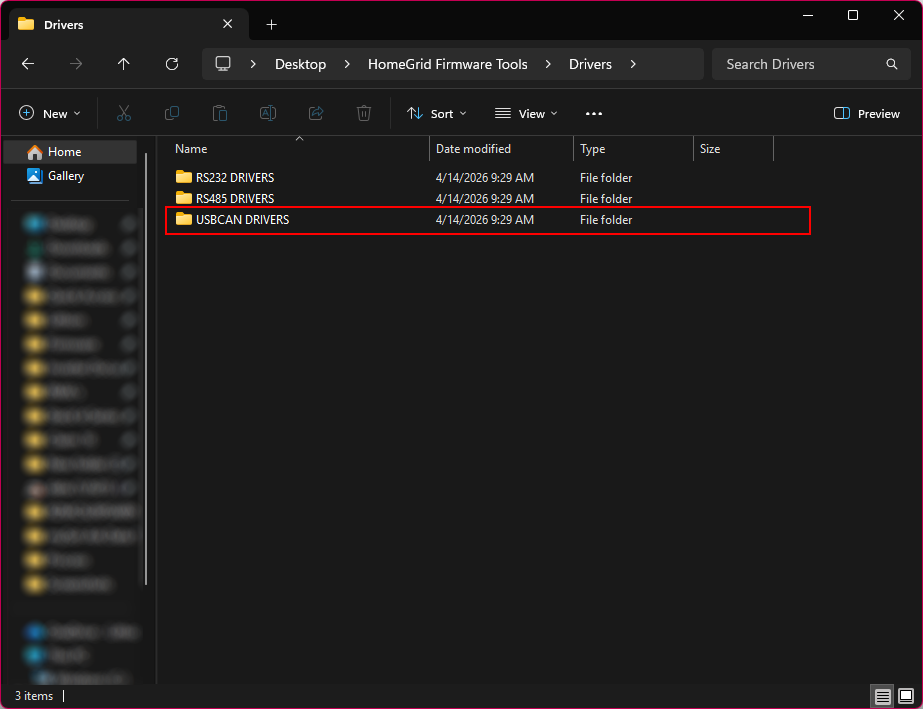
21. Navigate back to the 'HomeGrid Firmware Tools' folder and open the 'Drivers' folder.
22. Open the 'USBCAN DRIVERS' folder.
23. Select and open ‘DRIVER 1’.
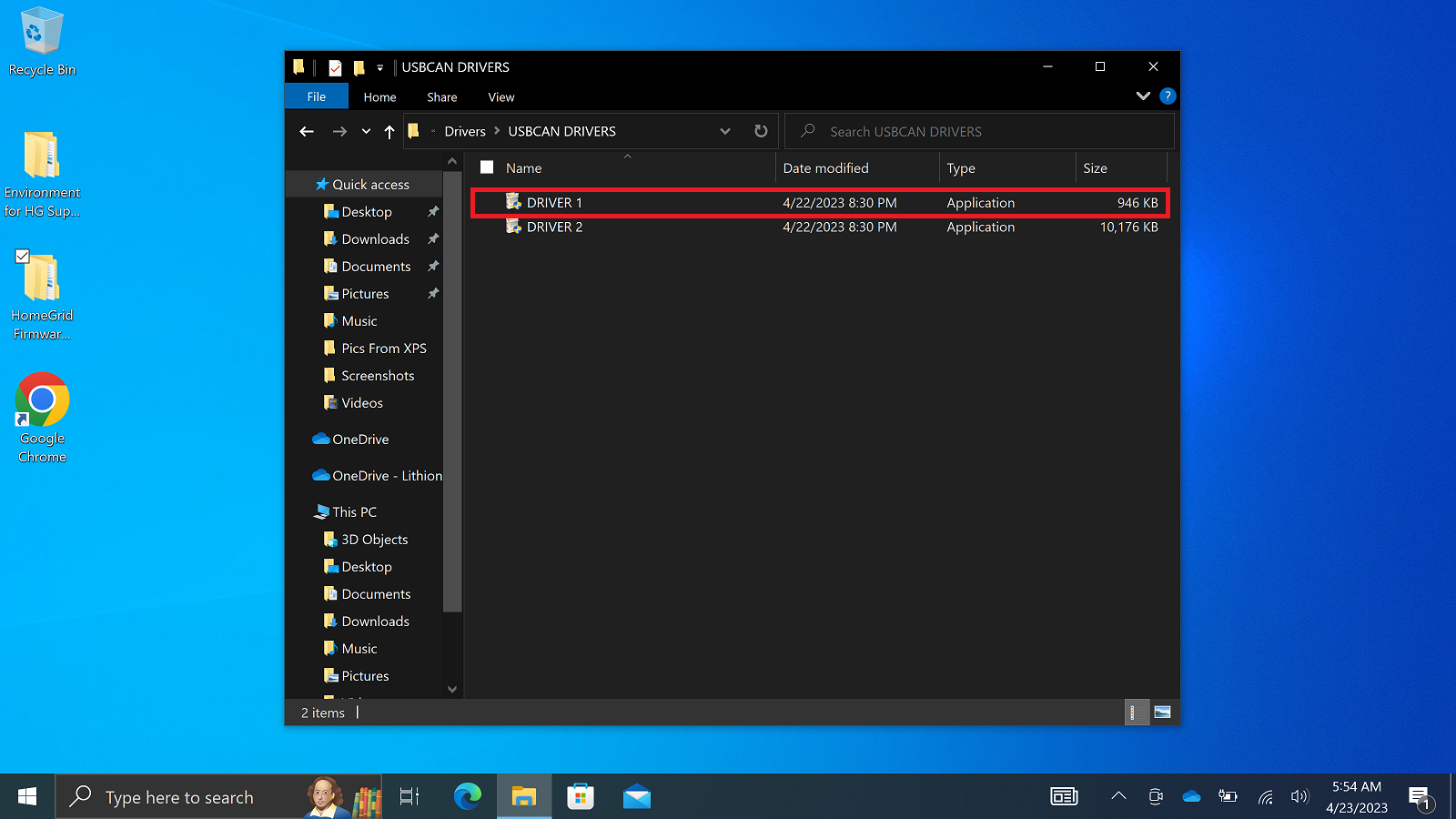
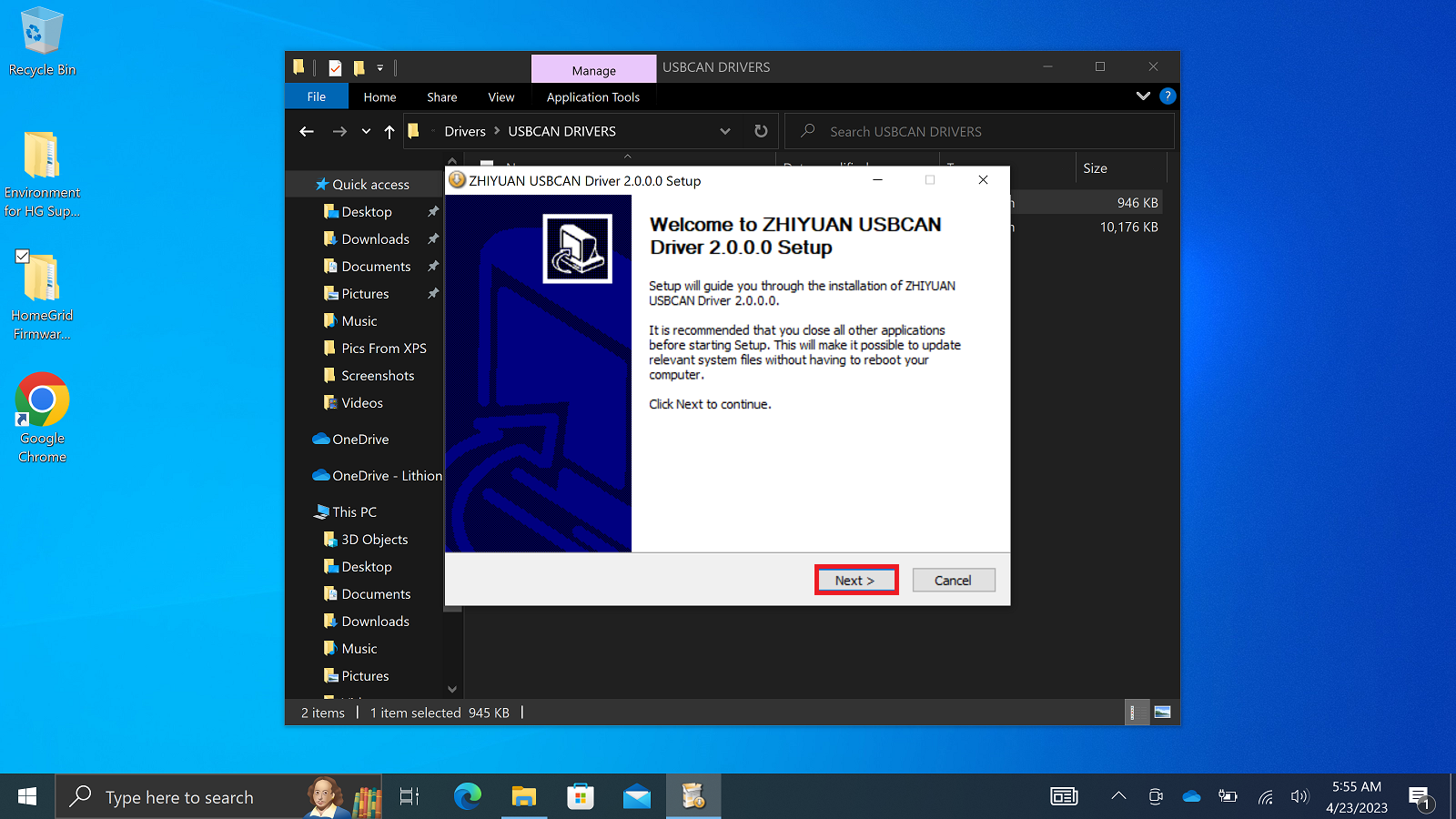
Upon opening the application file, the installation wizard should appear. Navigate through the prompts to install the USB CAN drivers.
Select ‘Next >’ to begin.
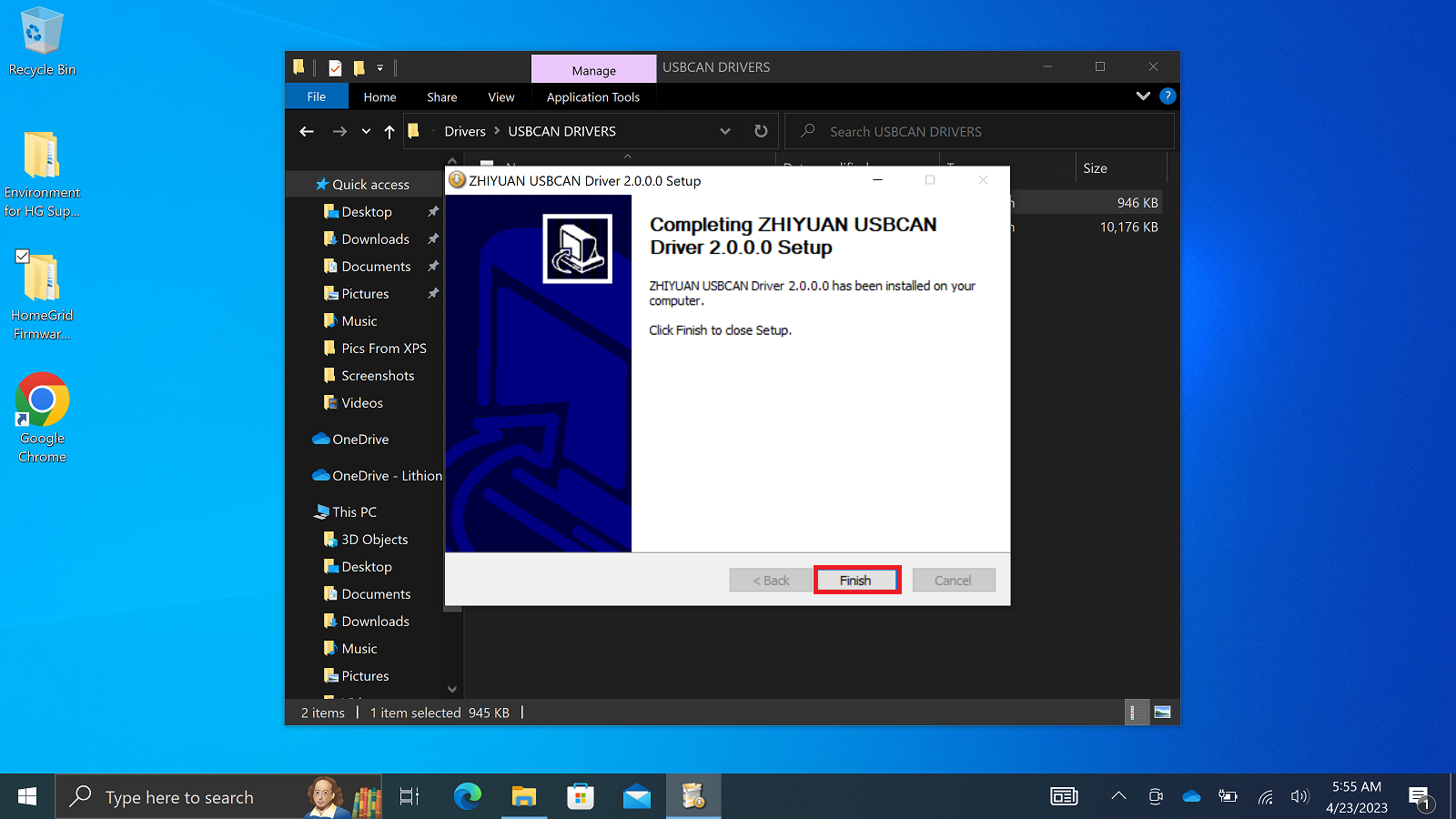
Select ‘Finish’ when installation is complete.
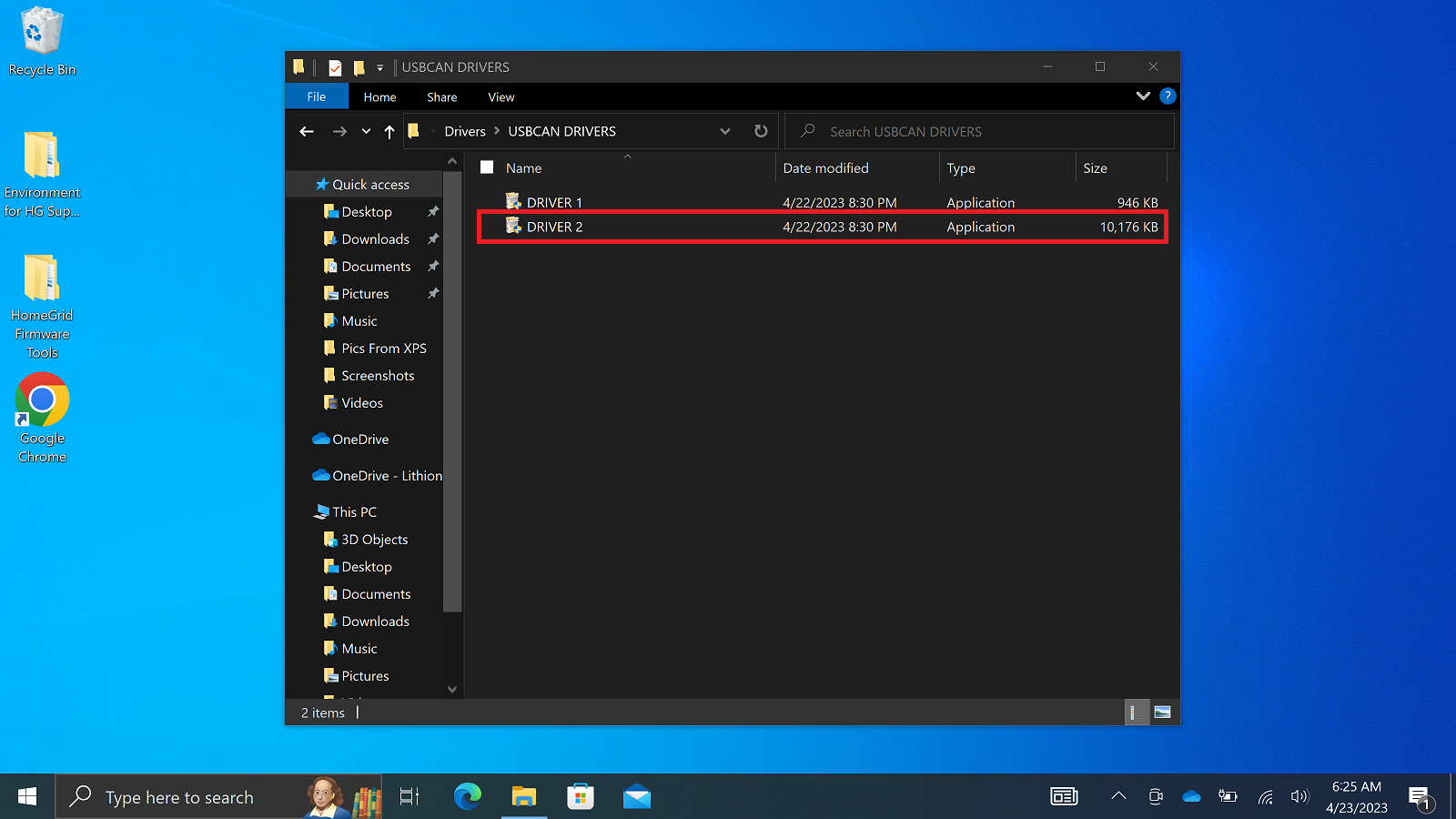
24. Select and open ‘DRIVER 2’.
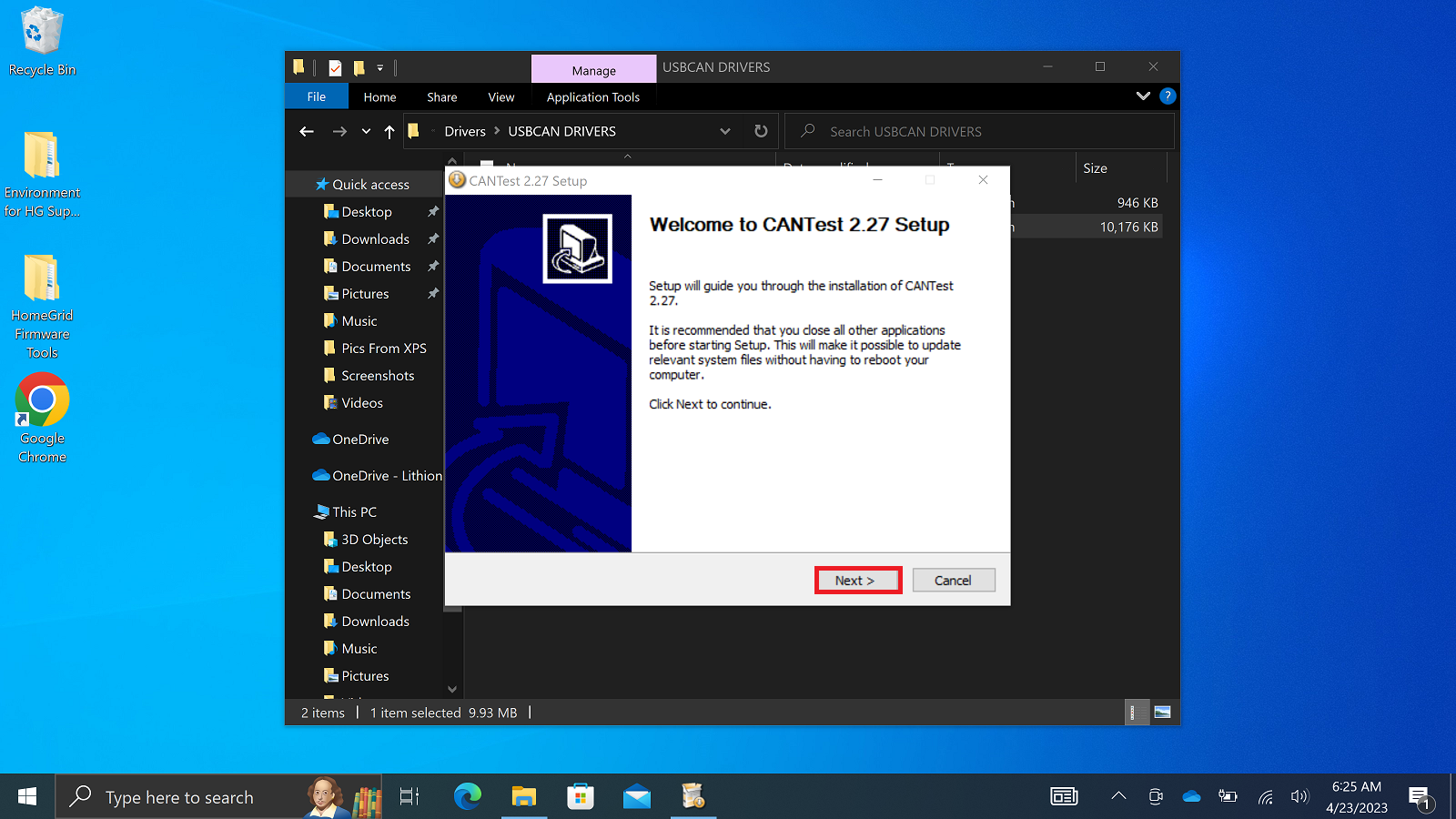
Upon opening the application file, the installation wizard should appear. Navigate through the prompts to install the USB CAN drivers.
Select ‘Next >’ to begin.
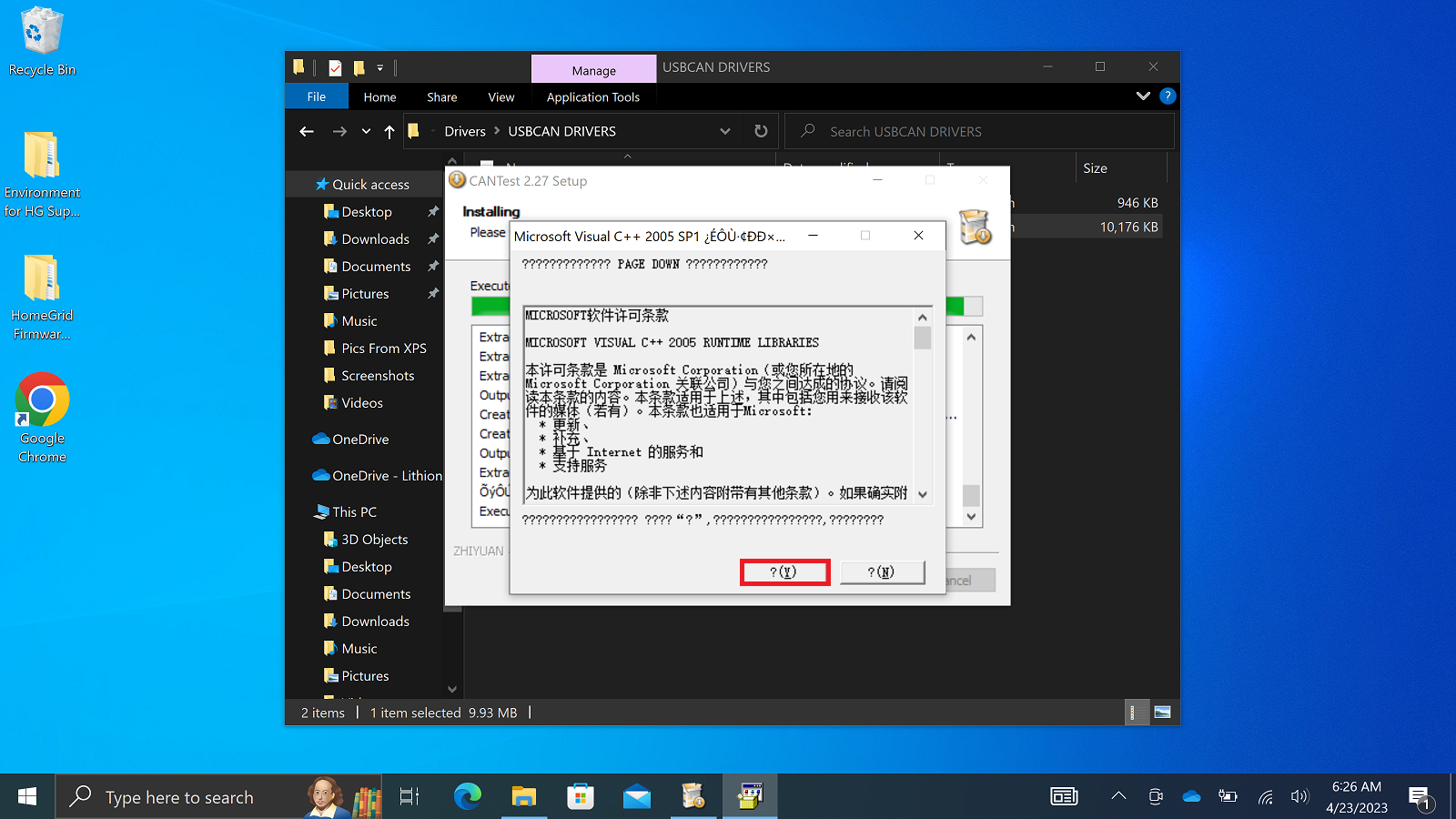
When you get to this point, it will request to install correct version of Microsoft C++ Runtime Libraries. Select ‘? (Y)’ to continue.
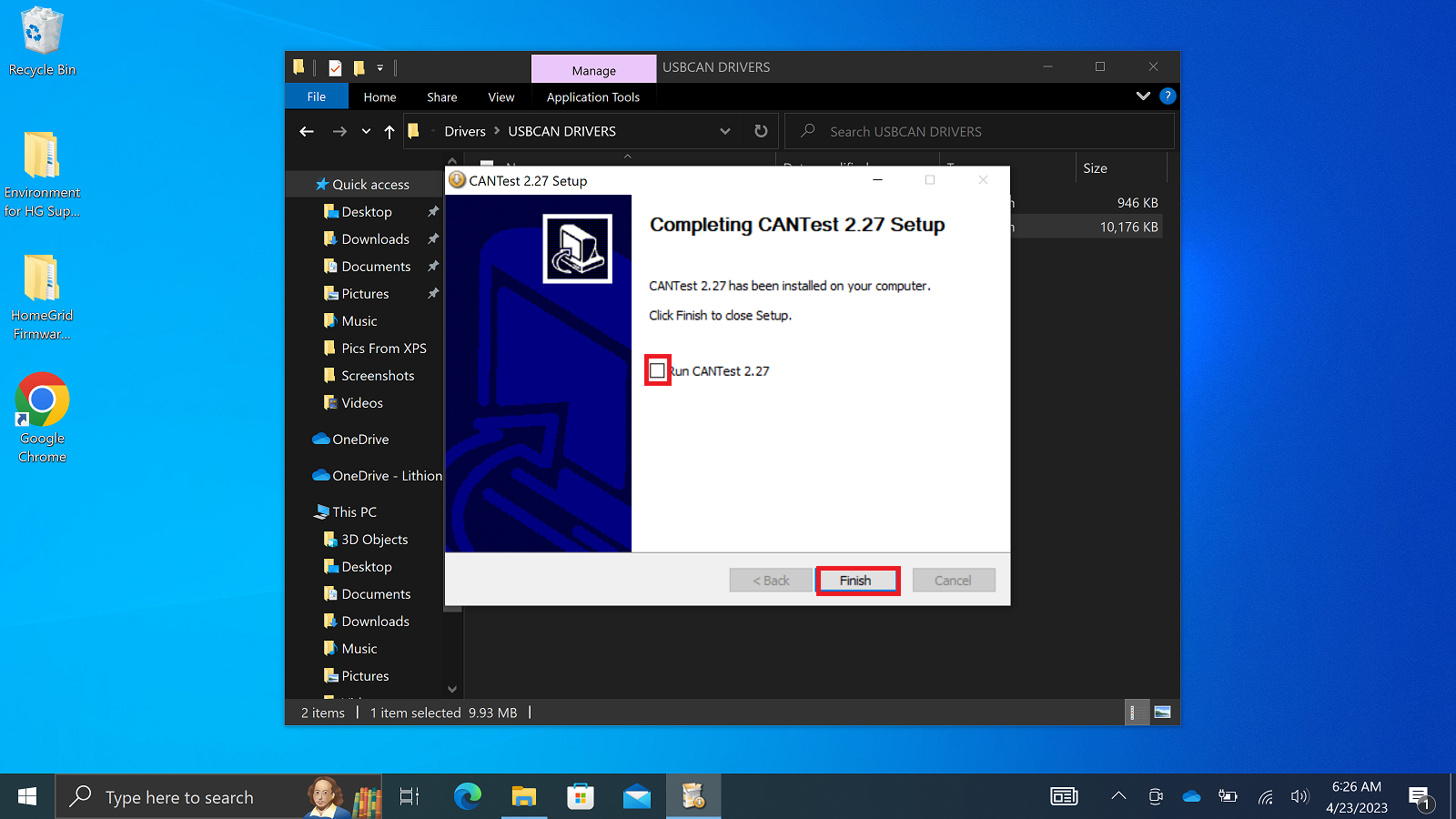
Uncheck ‘Run CANTest 2.27’ and select ‘Finish’.
25. Restart the computer to ensure that the environments and drivers can fully take effect.
Setup of ‘HomeGrid Firmware and Tools’ Complete. Contact HomeGrid Support for further assistance.
Was this article helpful?
That’s Great!
Thank you for your feedback
Sorry! We couldn't be helpful
Thank you for your feedback
Feedback sent
We appreciate your effort and will try to fix the article